A match’s page turns into an analysis: up to seven tabs, all worked out from the balls you recorded. Findings can be computed mid-match too.
The short version
Open a finished match and scroll to Stats. Everything is already worked out from the points you recorded, and Findings puts the main ones into words. There is nothing to set up.
Before you start
Who it is forPlayerCaptainCoachClub admin
Open a match from the Matches list. The analysis goes as deep as the points were recorded, not as deep as your role.
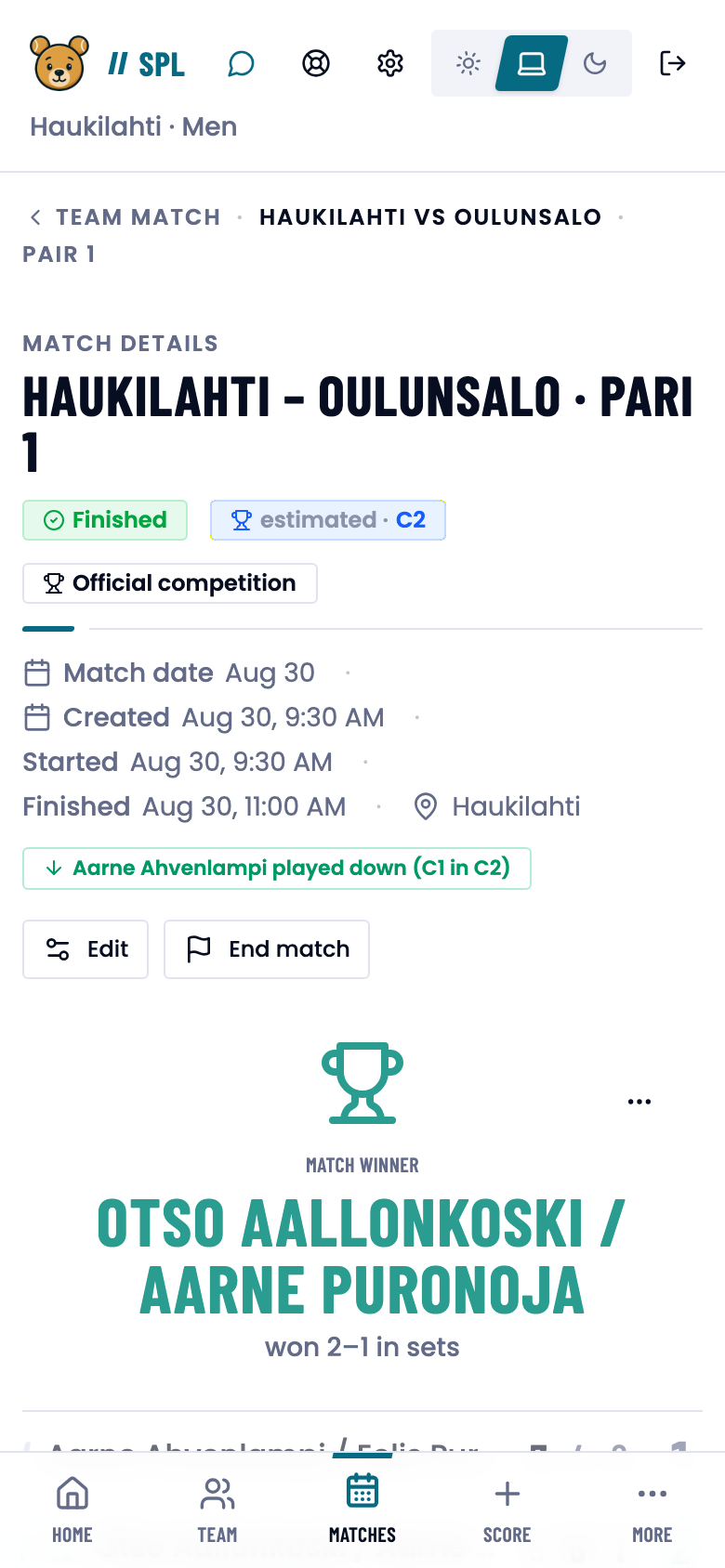
Seven tabs
The tabs are Overview, Filters, Momentum, Serve, Court Distribution, Story and Findings. A match shows the ones its points can fill.
What each tab shows
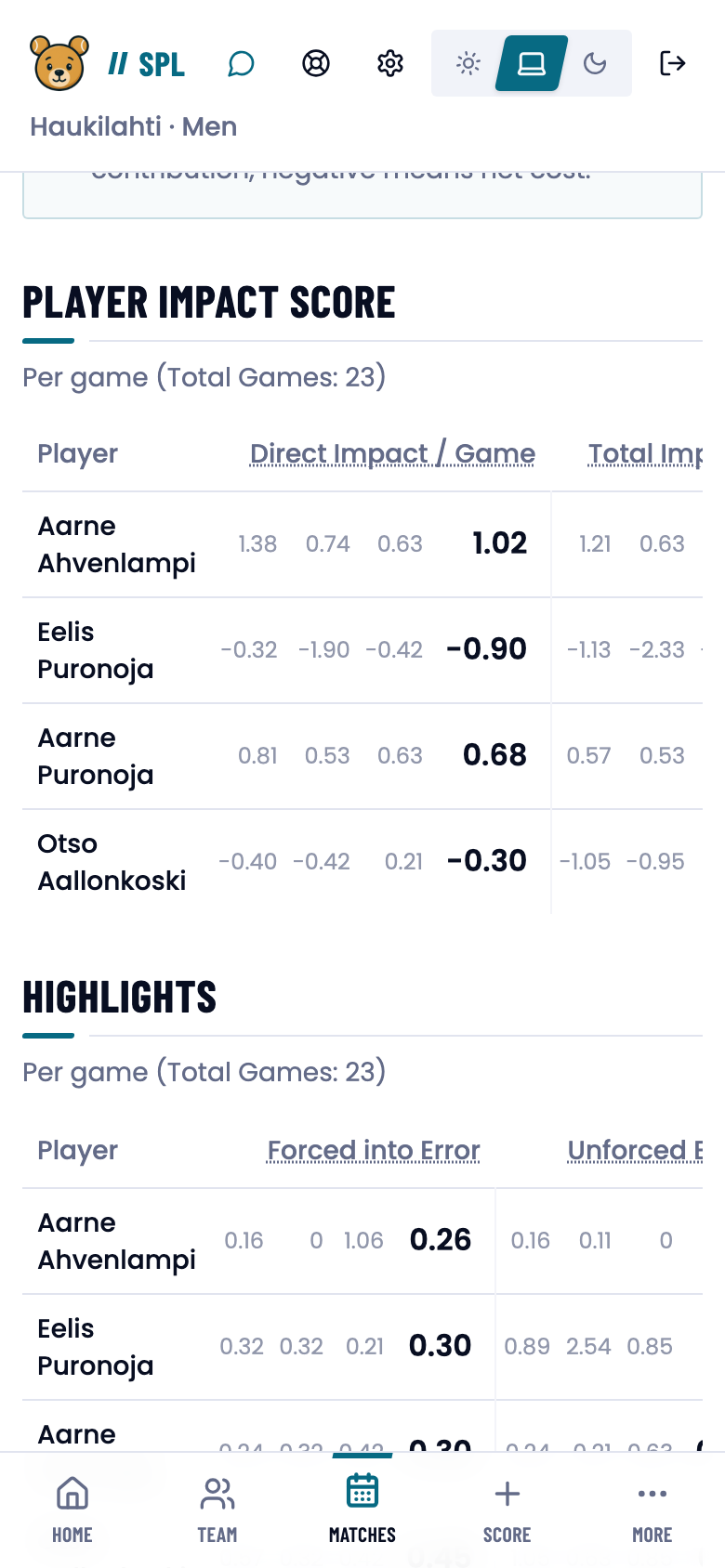
- Overview. Four tables, a column per set: Player Impact Score, Highlights, Totals and Decision Points.
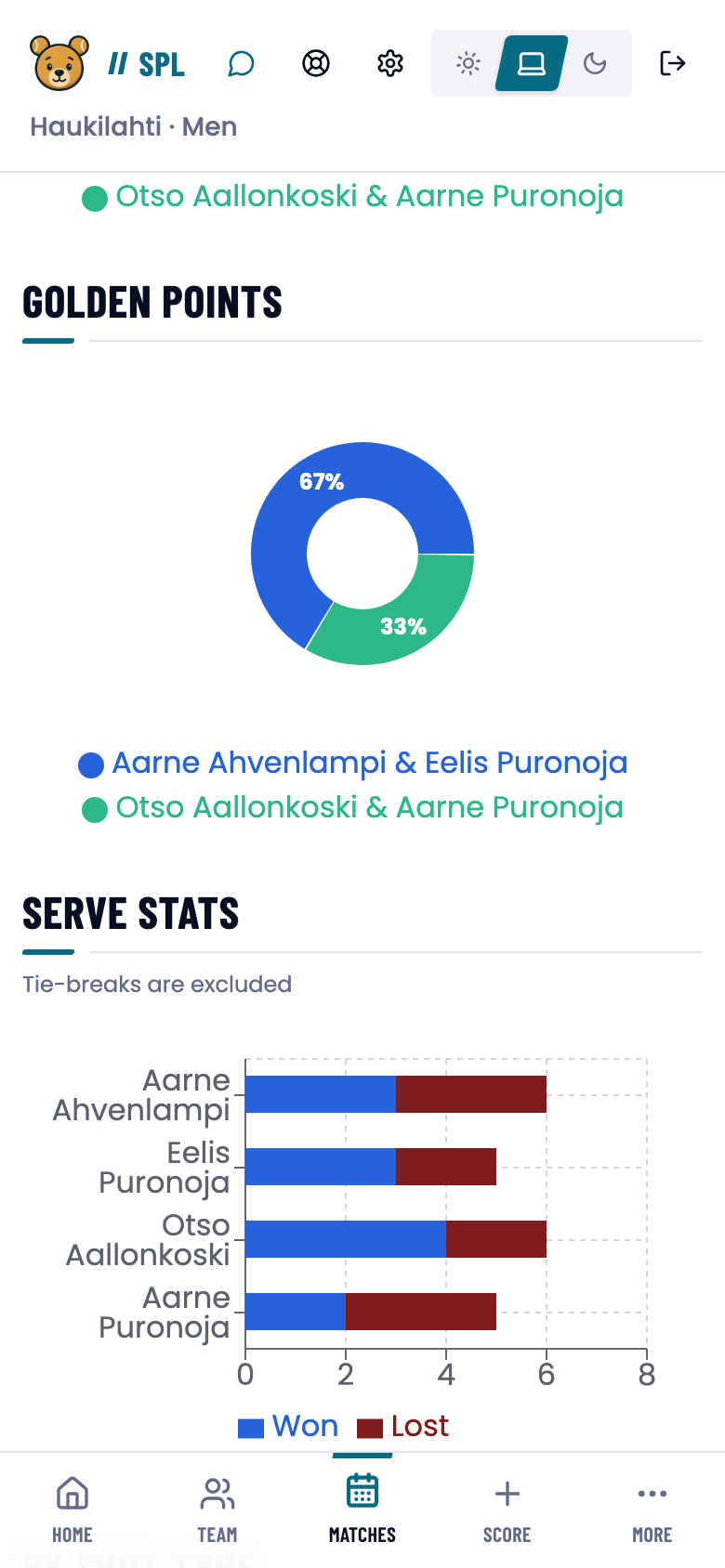
- Filters. The same data narrowed by team, set, shot or point type, or a player’s role, plus the pie charts.
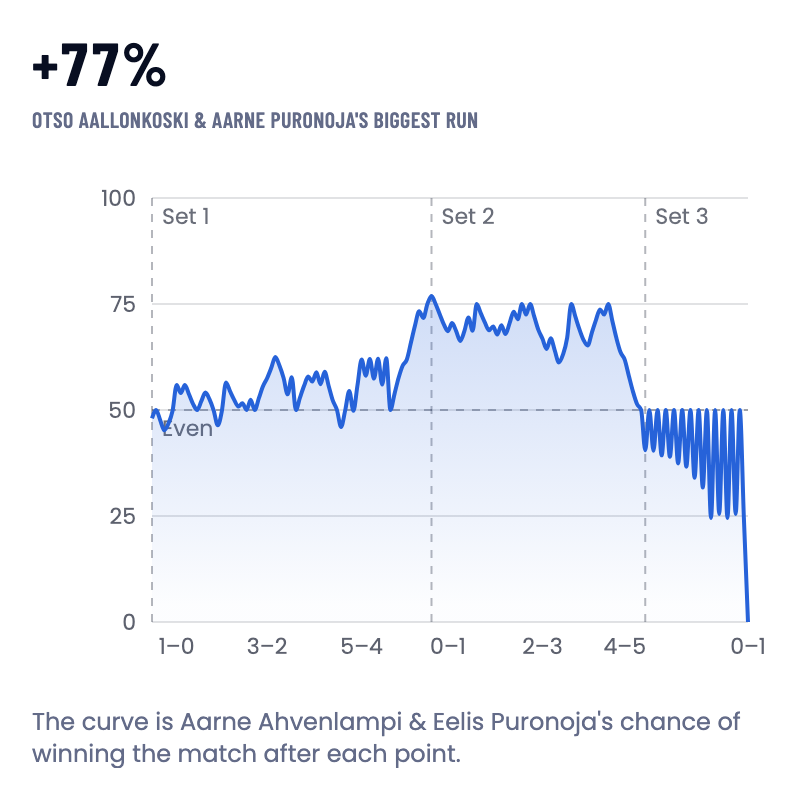
- Momentum. A curve of each pair’s chance of winning, point by point. The x-axis is ticked with the games score (1–0, 3–2), and each set has its own band. A point’s label names the set, the score and the serving pair.
- Serve. Serve and return per player, split by serve number where it was recorded.
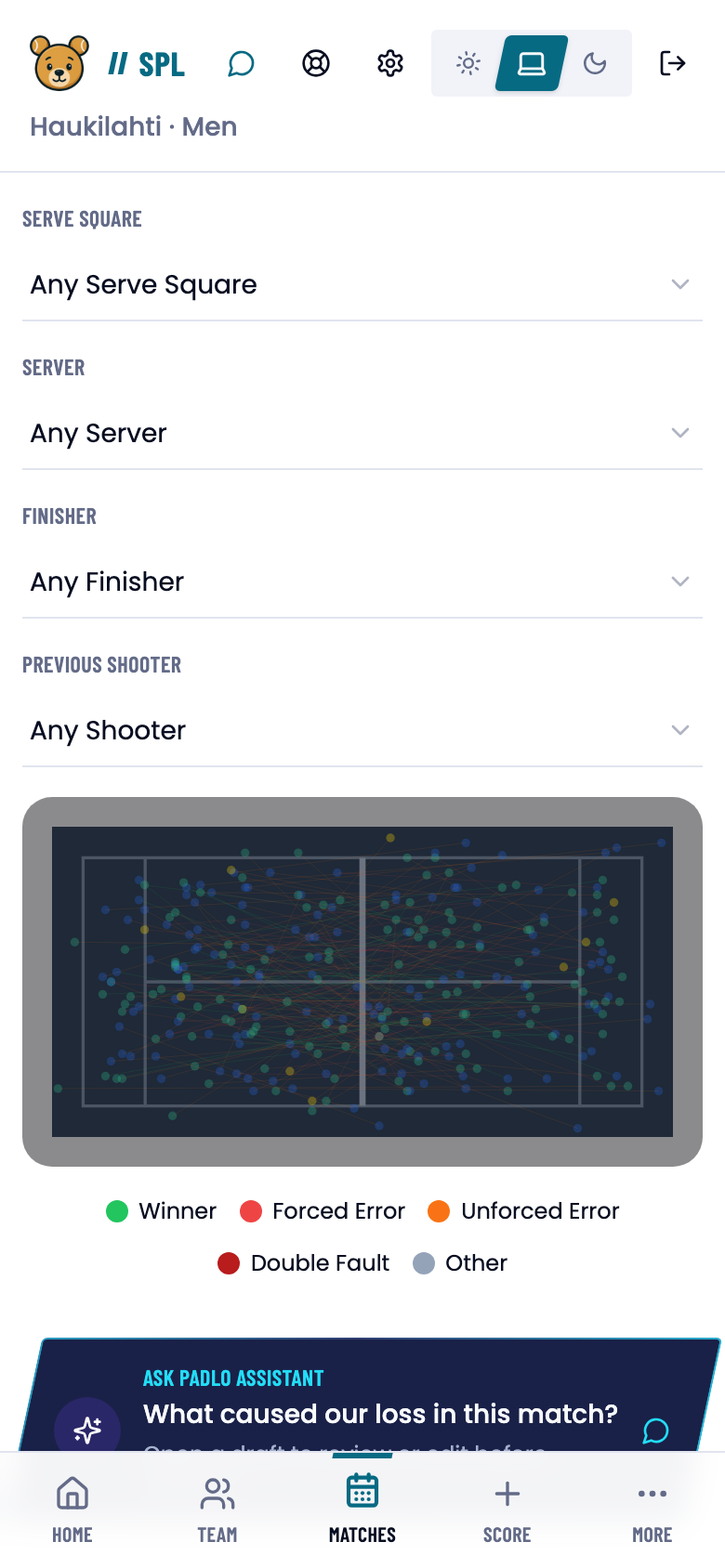
- Court Distribution. A map of every ball’s origin and target.
- Story. The match ball by ball, stepped through with arrows.
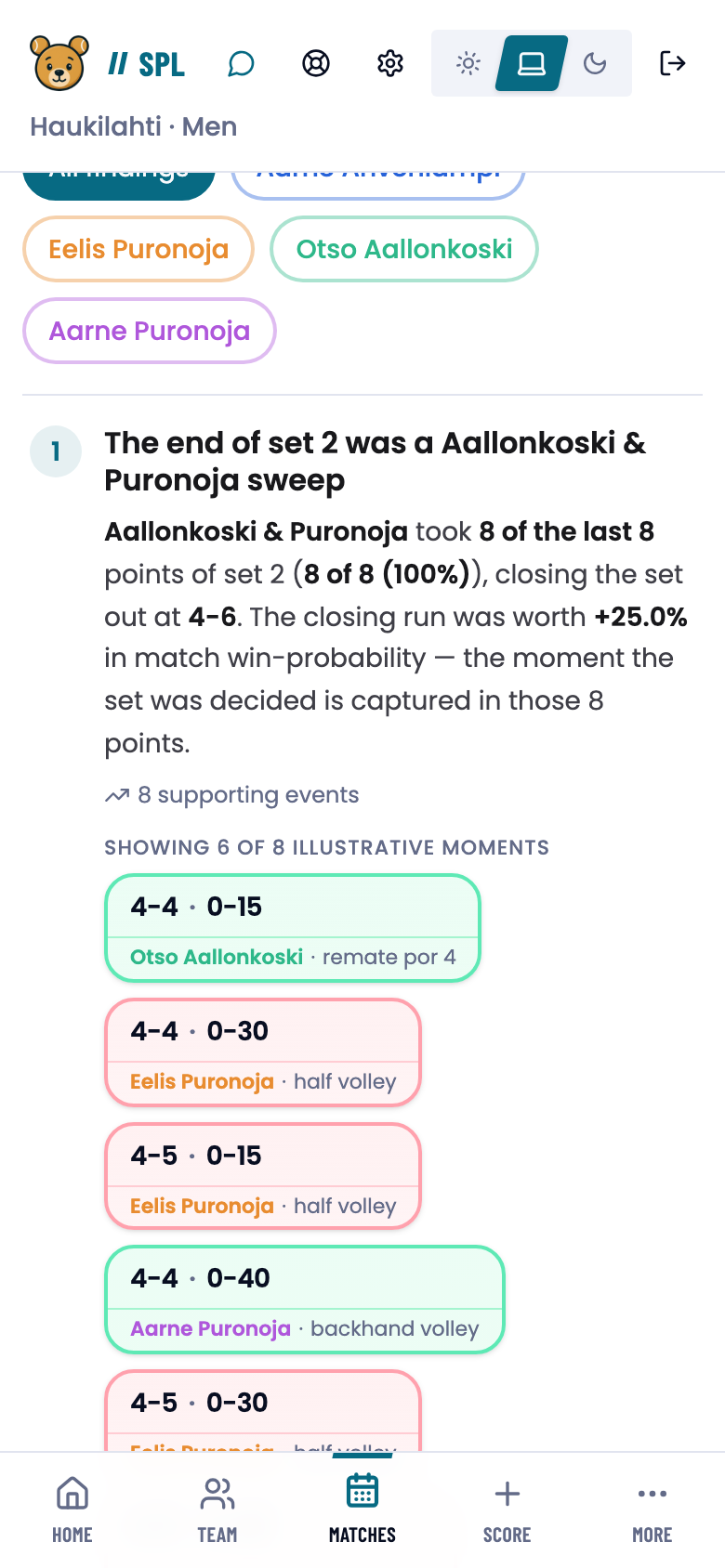
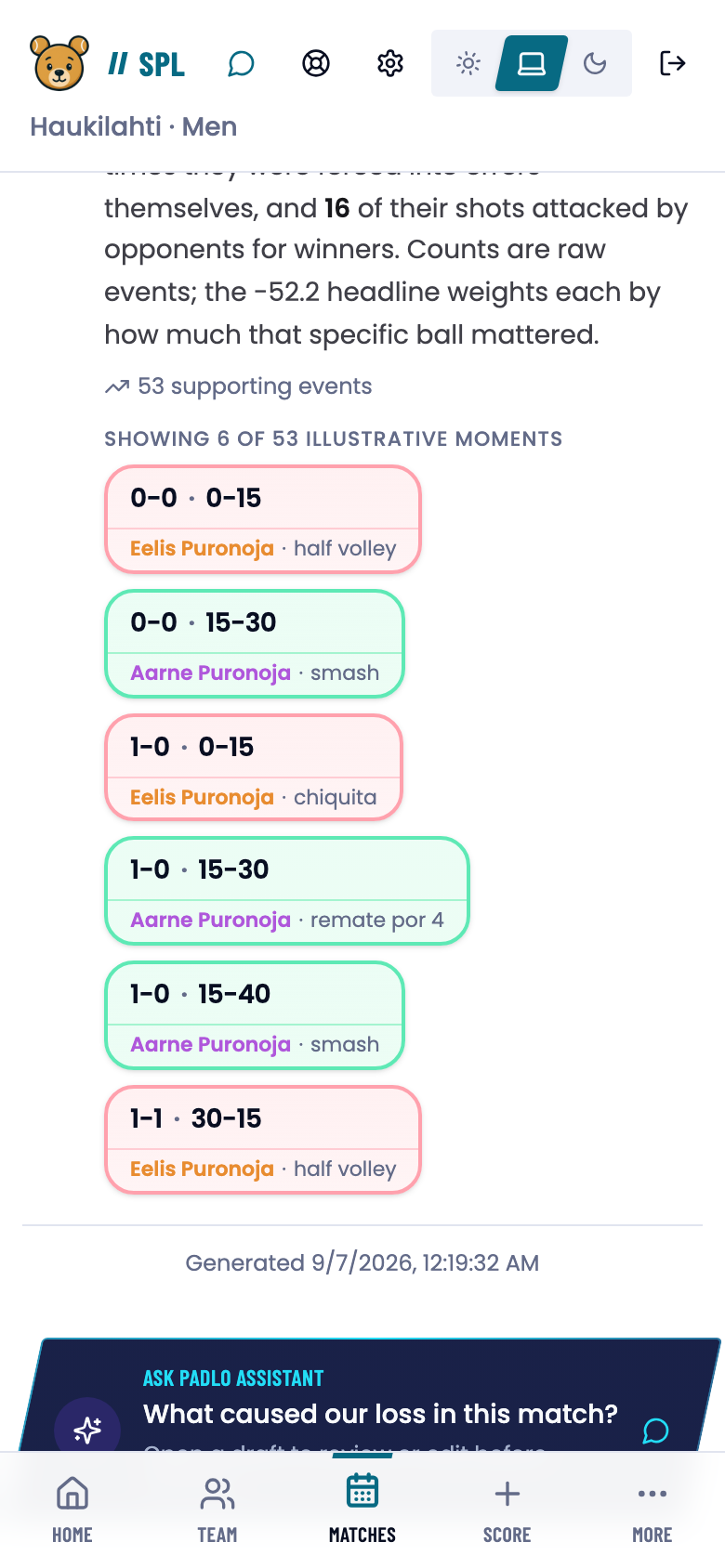
- Findings. Automatic observations about what settled a set and where momentum turned, each with a count of supporting events.
Compute the analysis mid-match
An unfinished match carries a panel under the Stats heading that works the findings out from the balls logged so far.
- Press Compute analysis. The result is marked Interim, with the ball count.
- Once more points are in, the panel offers Refresh analysis.
- The panel lists the groups that still need more balls.
You can repeat the computation about every 10 seconds. A finished match with a current analysis has no panel.
Direct and total impact
Figures are normalized per game, so matches of different lengths compare. The formula is on the Overview tab.
- Direct Impact / Game = (winners + errors forced + assists − unforced errors) ÷ games
- Total Impact / Game = Direct Impact − (shots before opponent winner ÷ games)
A positive number is a net gain, a negative one a net cost.
The Padlo Assistant’s analysis
At the foot of the match sits Ask Padlo Assistant with a ready question, such as What caused our loss in this match? Tapping it opens a draft you can edit. The answer uses the match’s own numbers.
Good to know
Trouble?
There are no findings at all. Findings need shot-level detail. On an unfinished match, press Compute analysis.
The Serve tab says there is no serve data. The serve number is picked when the point is recorded, never later.
I can see the score but not the analysis. It is limited to the coaches and clubs involved: Analysis not shared with you.
Can I fix a wrongly recorded point? Not while the result stands. Whoever has scoring access presses Reopen match, corrects the points and finishes again.