Someone invited you to run your club in Padlo: accept the invitation, then give each team its players and a captain.
-
Open the email whose subject begins “You’ve been invited to join the club” and press Accept Invitation. The invitation is good for seven days.
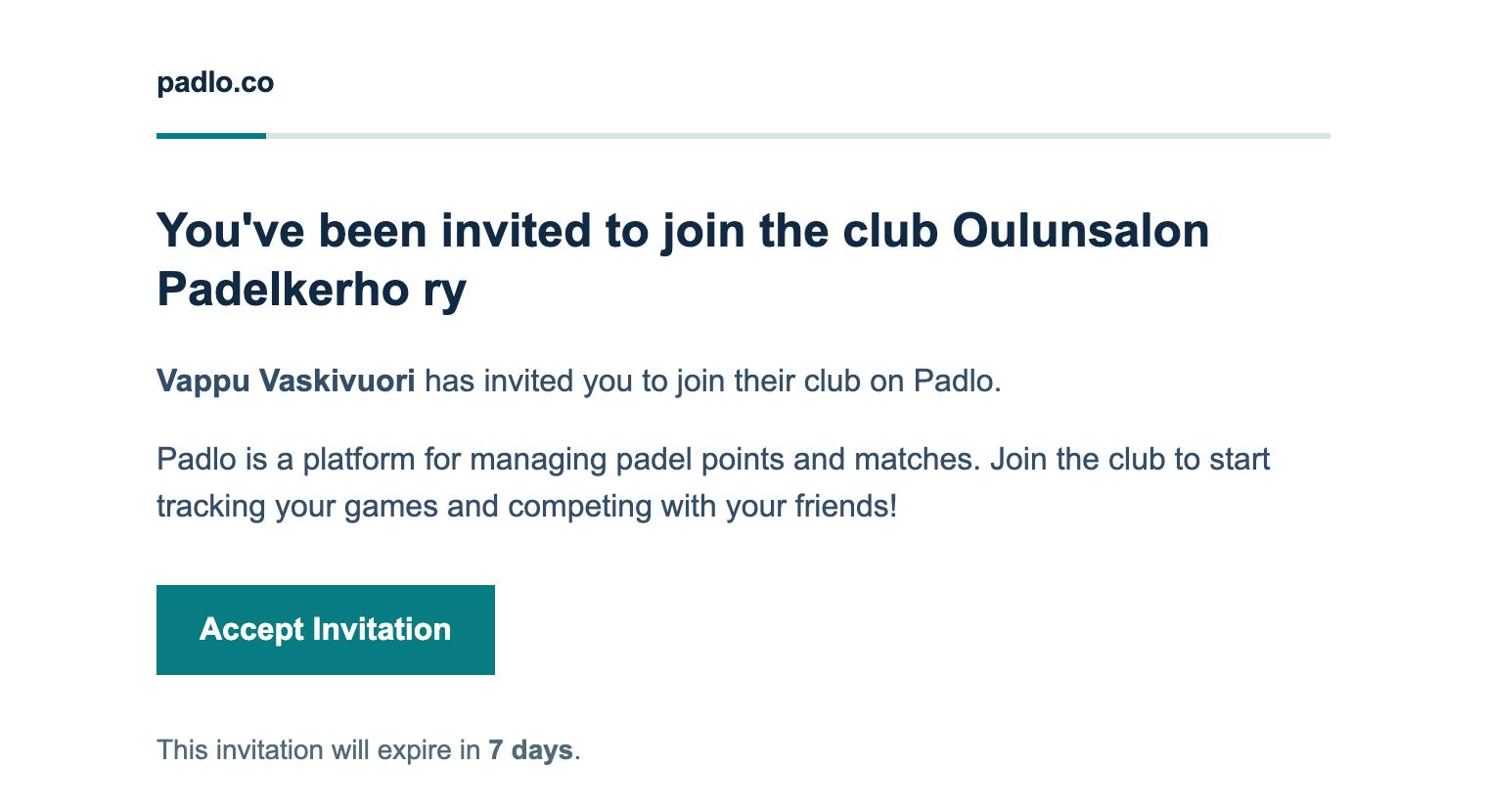
Step 1. The email names the club and who invited you. -
The page shows what you are joining. On the Create account tab fill in your first name, email and password, tick the terms box and press Create account. If you already use Padlo, take the Sign in tab instead.
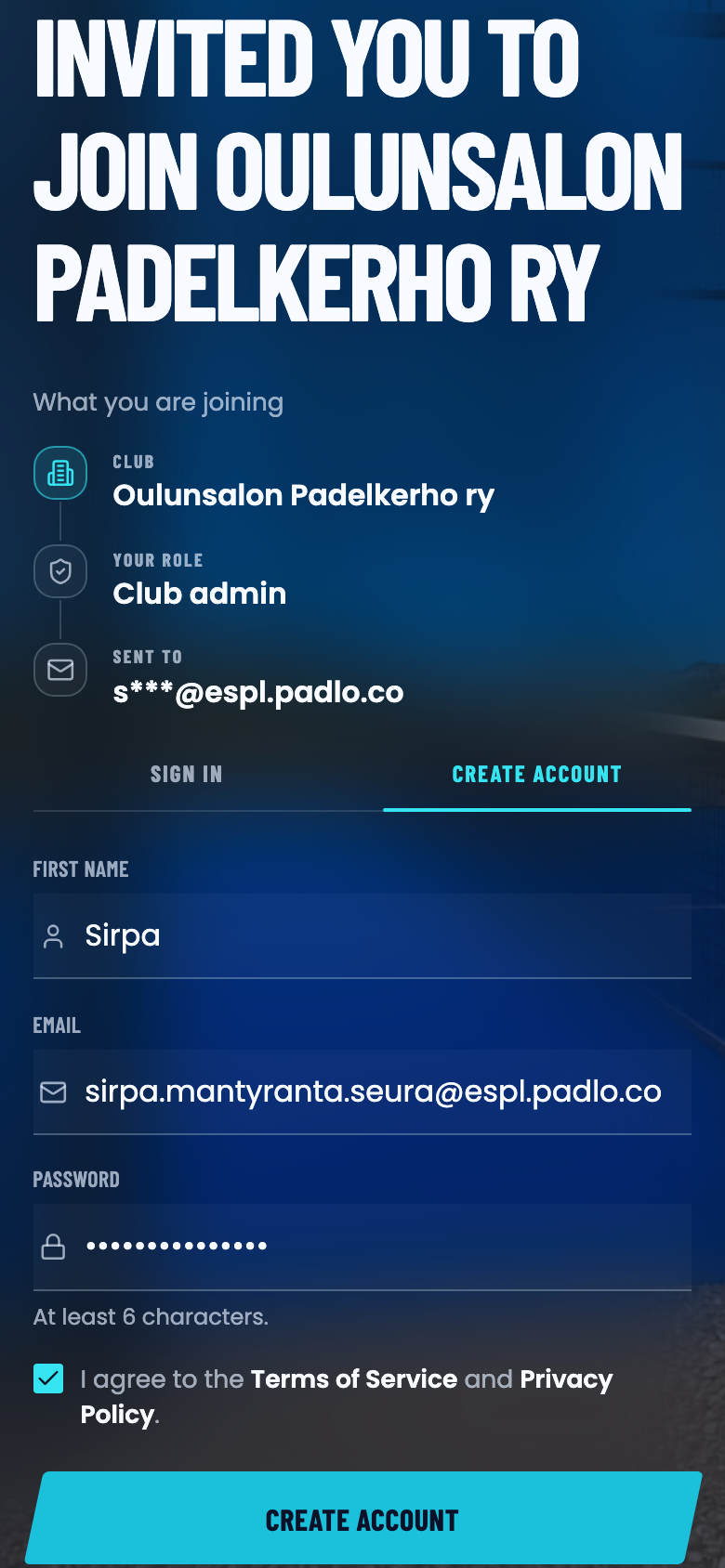
Step 2. Your role, Club admin, is on the page before you sign anything. -
Confirm with Accept and join. A short setup follows and ends on You’re all set. Press Open my team view.
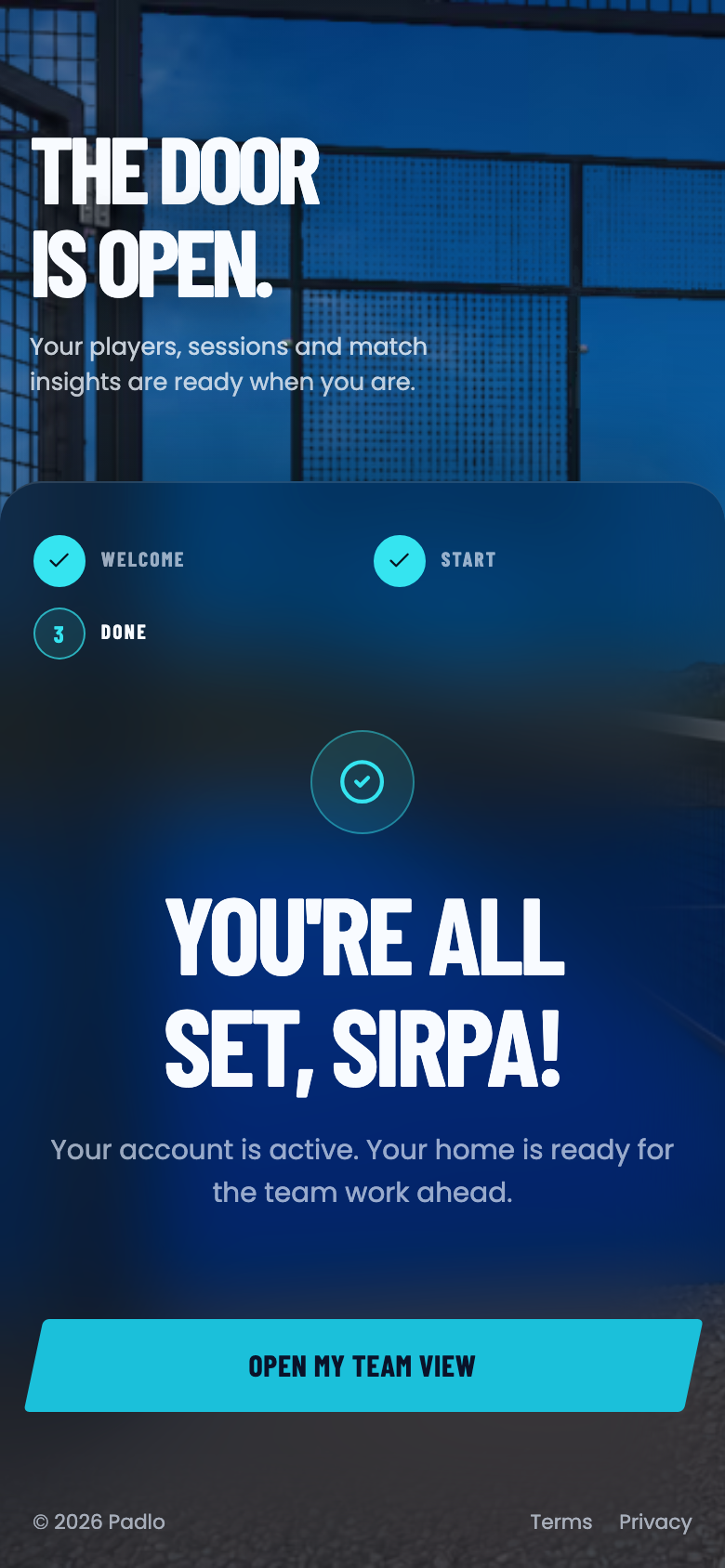
Step 3. Setup runs once per account. -
Your club page opens with a card for every team. Press Manage team on the team you want to fill.
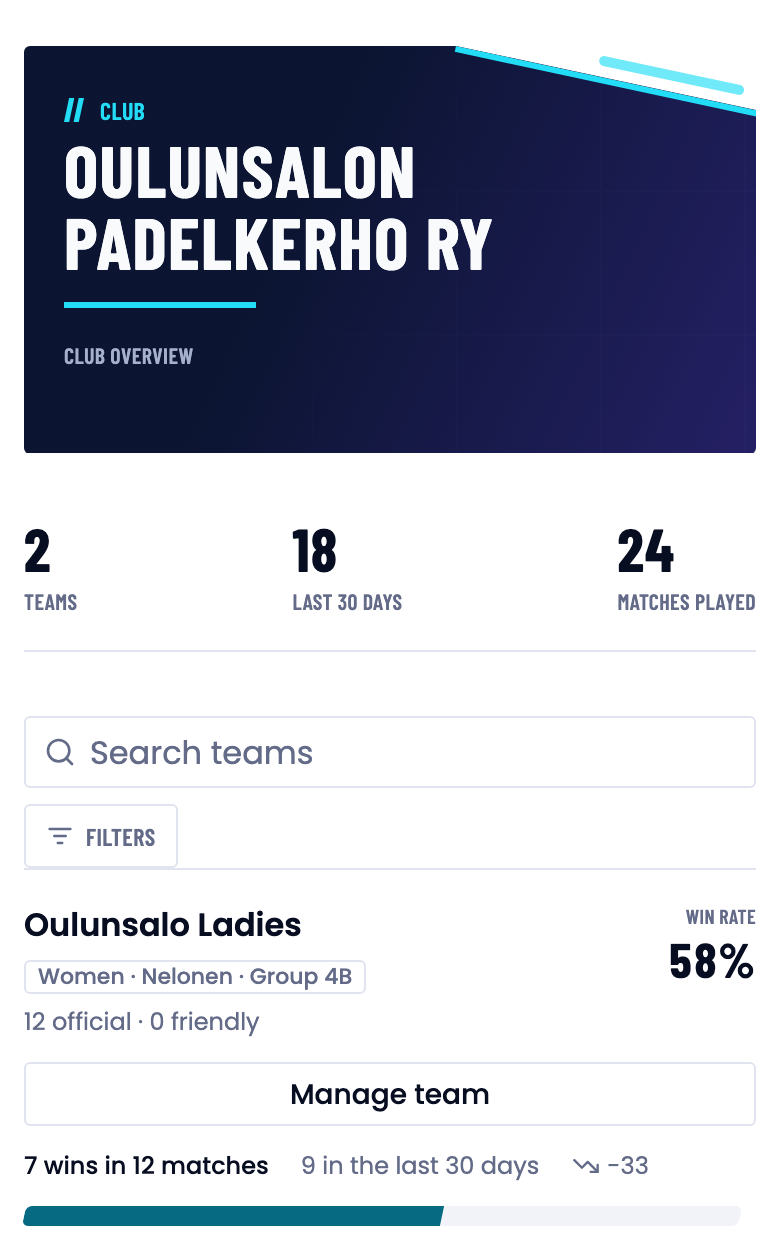
Step 4. The totals above the list cover the whole club. -
On the Manage tab press Add player. Fill First name, Last name and, if you want to invite them, Email (optional). Press Add player.
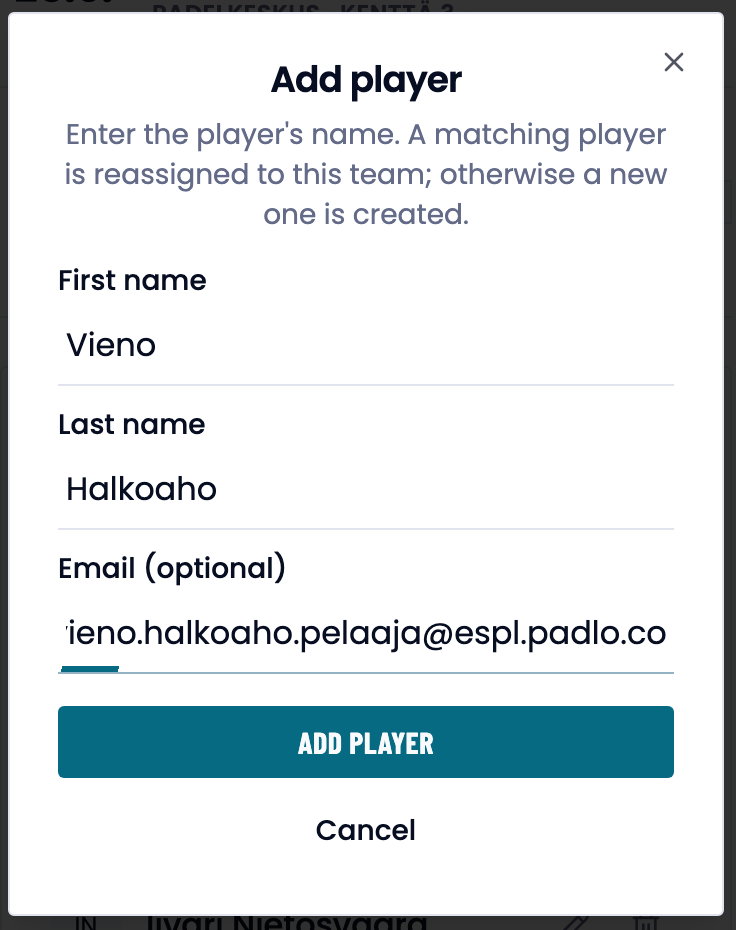
Step 5. A matching player is moved to this team instead of being duplicated. -
Scroll to Captains on the same tab. Under Add a captain, find the team member by name and give them the role.
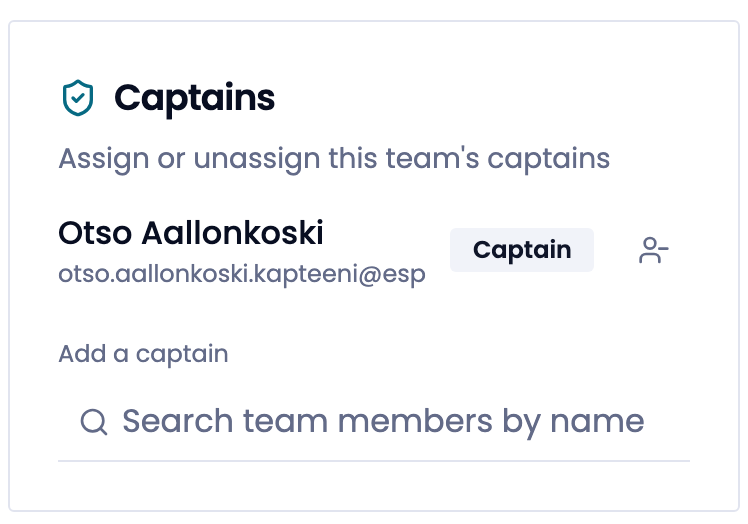
Step 6. A captain is picked from the team’s own members.
An email address on a player sends them an invitation; leave it out and you simply add the name to the team’s player list.
What next
- Club admin guide — teams, players and invitations in full.
- Dashboards: team, club and federation — the figures your club page collects.
- Roles and visibility — what each role may see and do.
Trouble?
“This invitation is already used”
An invitation works once. The club is already set up for the invited account, so press Go to sign in.
I already have a Padlo account.
Take the Sign in tab on the invitation page. The club is added to the account you already use.
The team has no captain to pick.
Add a captain searches the team’s own members, so add the person as a player first, then give them the role.