Home tells you what happens next. The team page tells you who is in the team and how the season is going.
The short version
Home is where you land after signing in, and your next match is at the top of it. Press the match to open it. The team page behind your team’s name lists who plays in it.
Before you start
You need an activated account and a place in a team. On the team page a captain also gets a Manage tab.
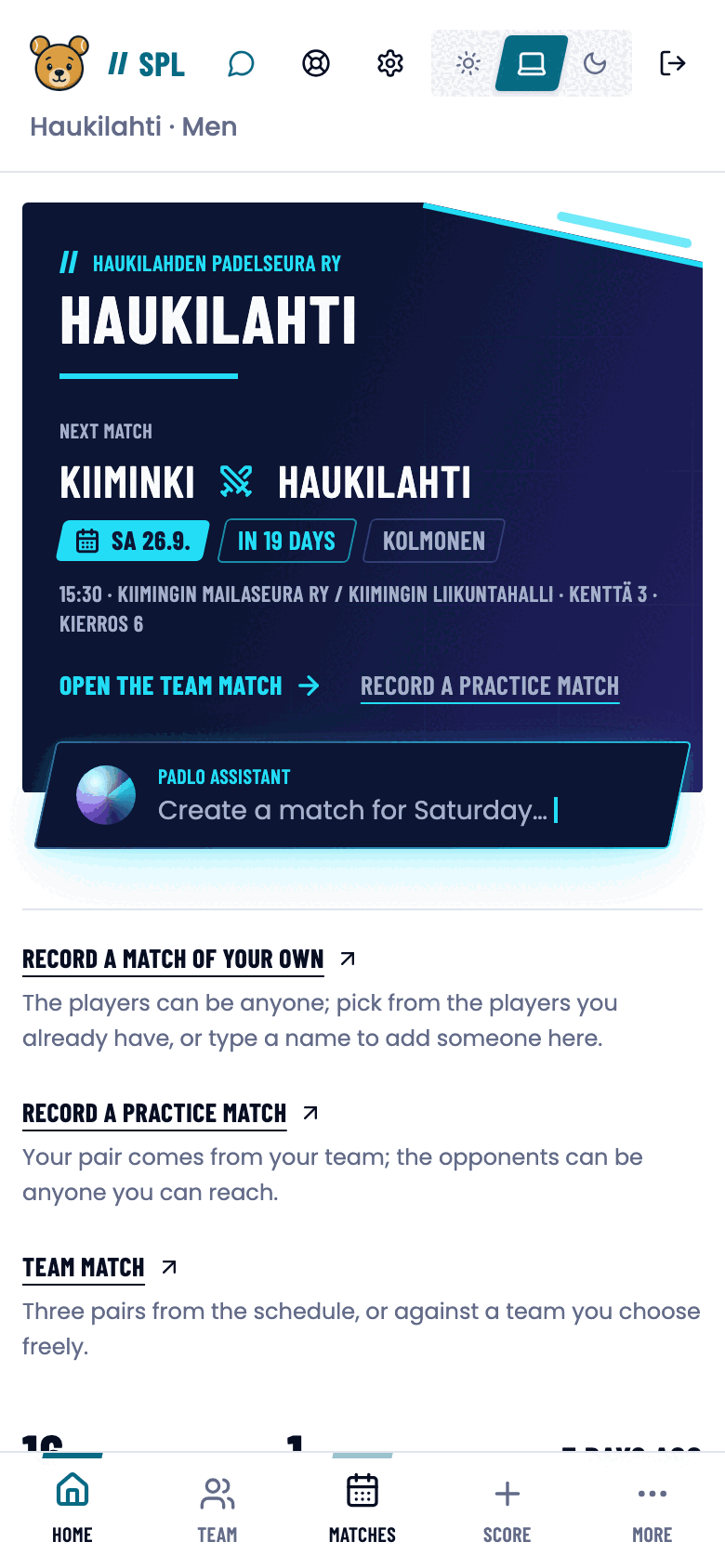
The home page
The top of the page names your club and team. Below it:
- Next match: opponent, day, time, venue, court and round. Open the team match takes you in.
- Record a practice match for a match played within the team.
- Record a match of your own for a match outside the team.
- Three figures: matches played, matches running and the last result.
- Upcoming matches: the rounds ahead.
- Show more reveals the list of finished matches.
- Bottom bar: Home, Team, Matches, Score, More.
The team page
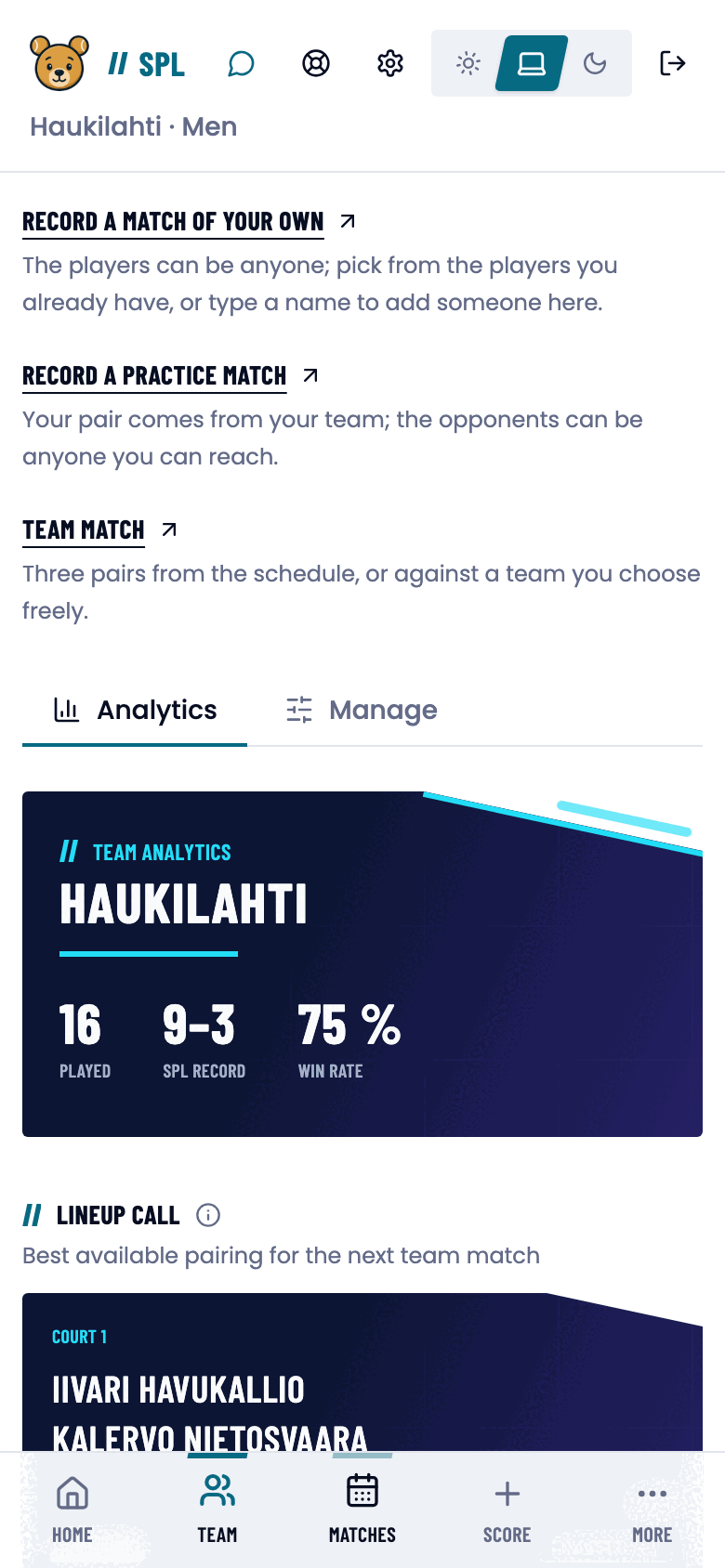
Team in the bottom bar opens your team’s page. It has two tabs.
The Analytics tab is visible to every member: season figures, the lineup call for the next team match, pair chemistry, form and trends, latest results and player impact.
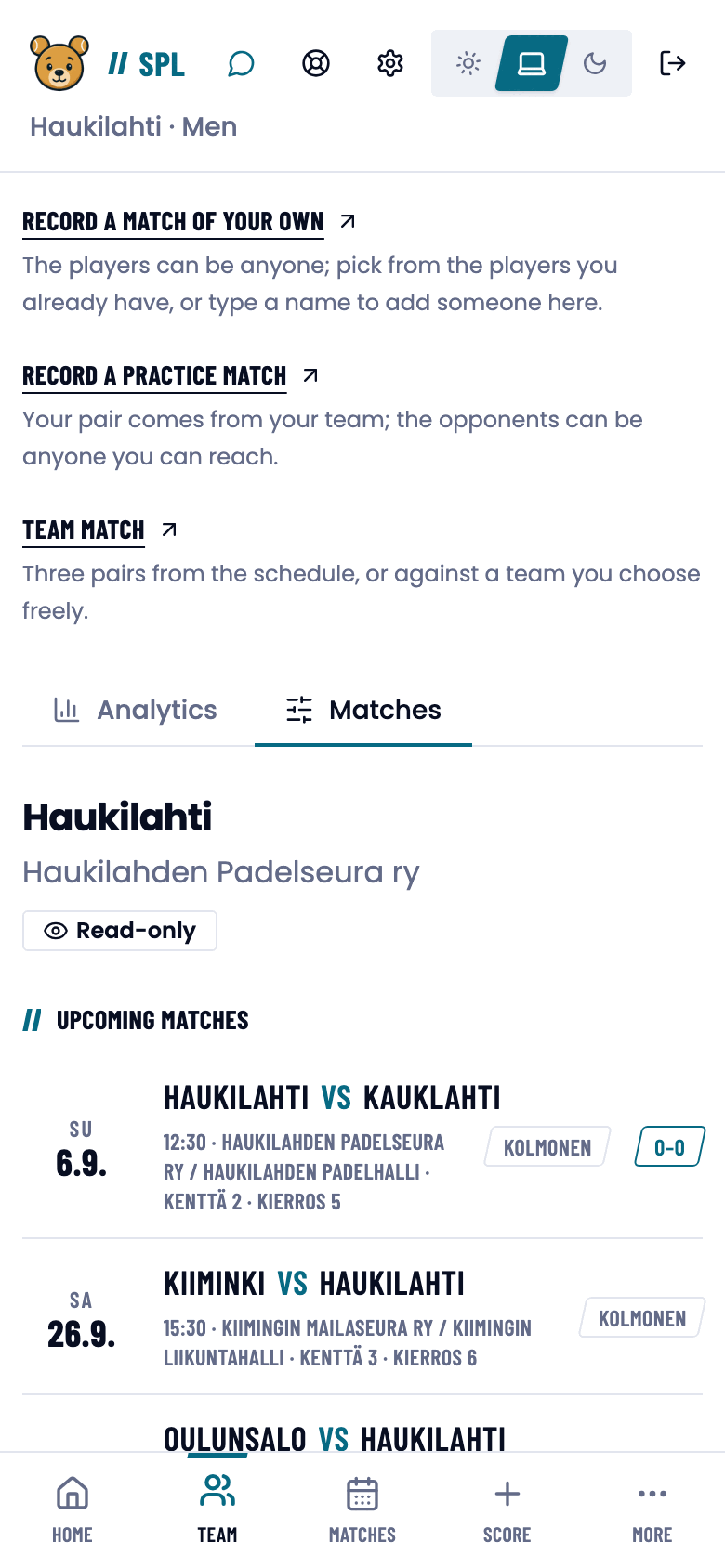
The second tab is Manage for a captain and Matches for every other member, the same page without the management cards.
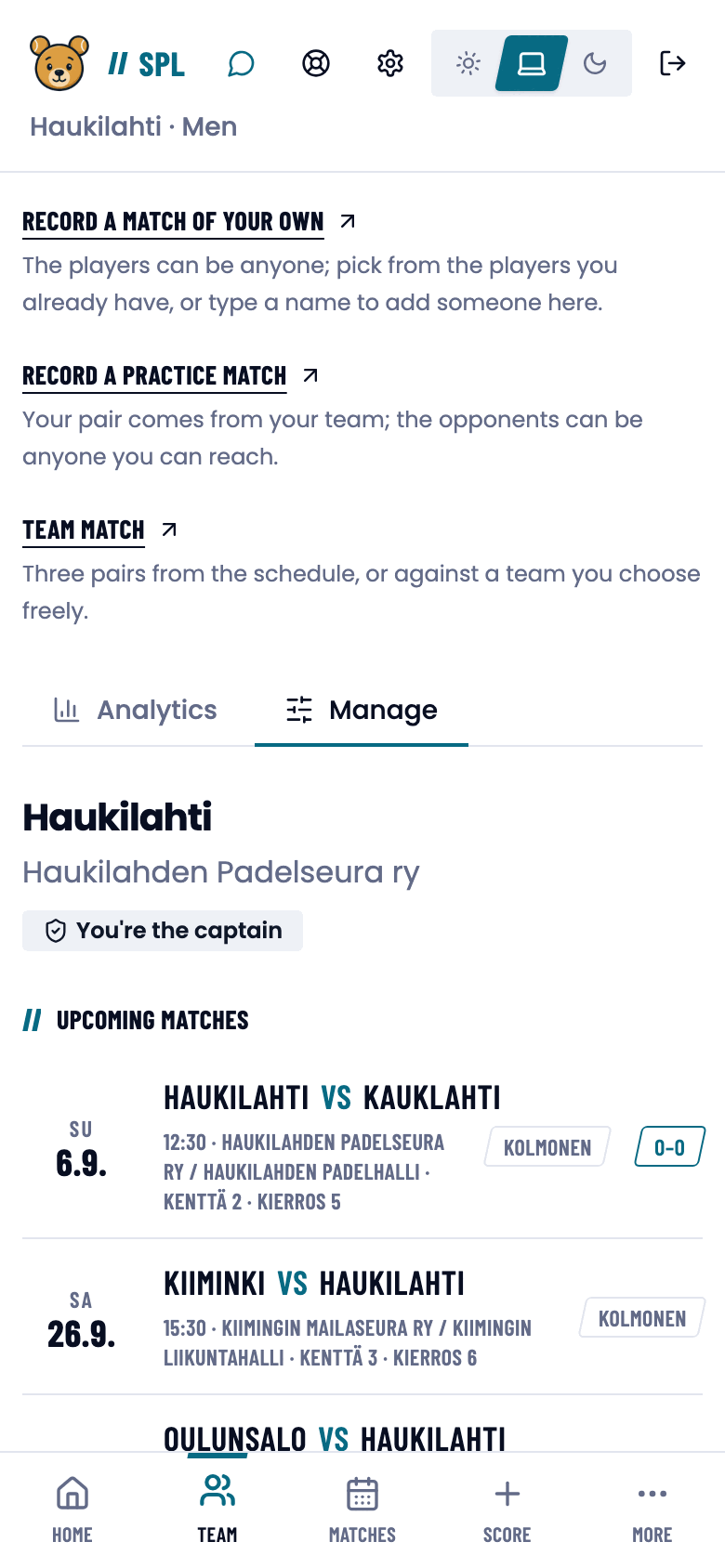
Managing the team (captain)
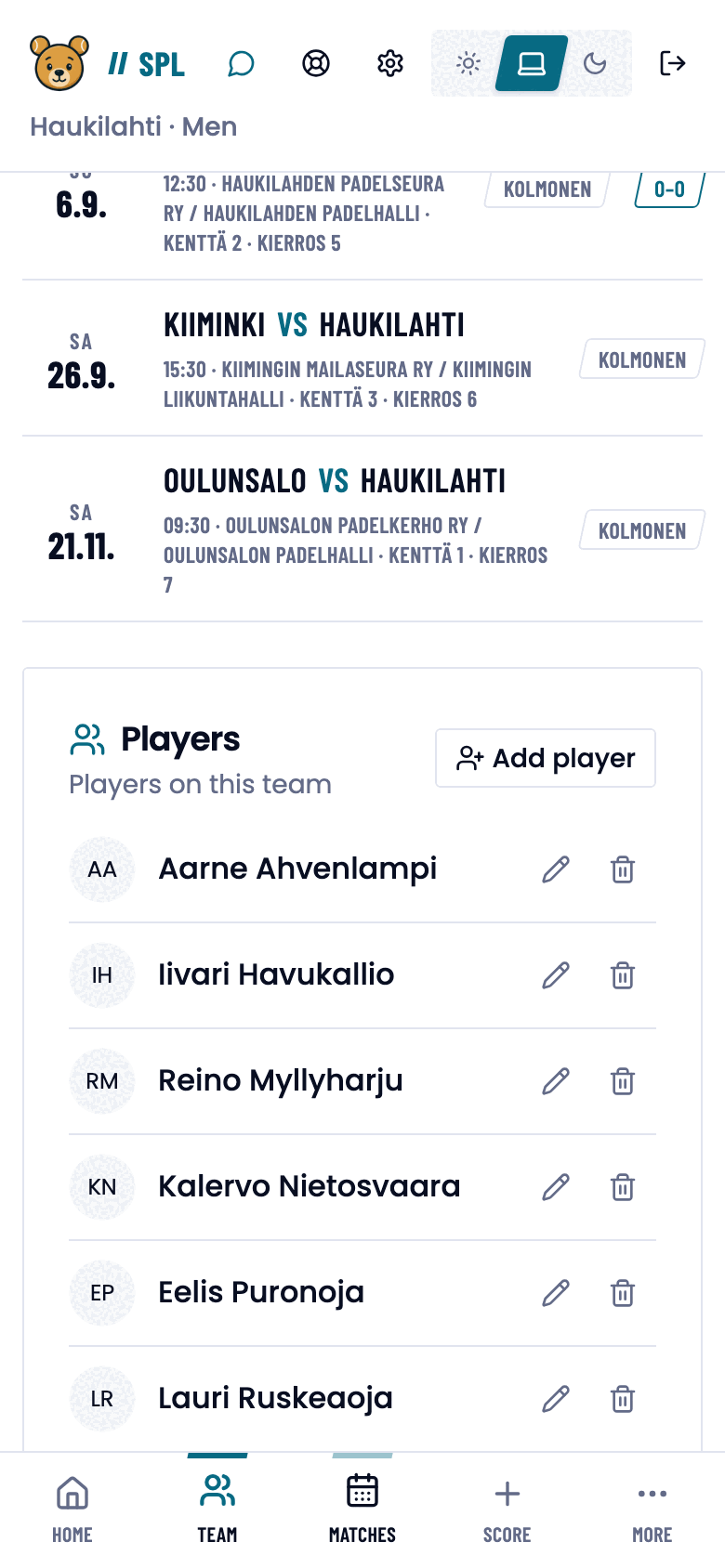
- Open Team and pick the Manage tab.
- The Upcoming matches card lists the season’s rounds. Played rounds show a result.
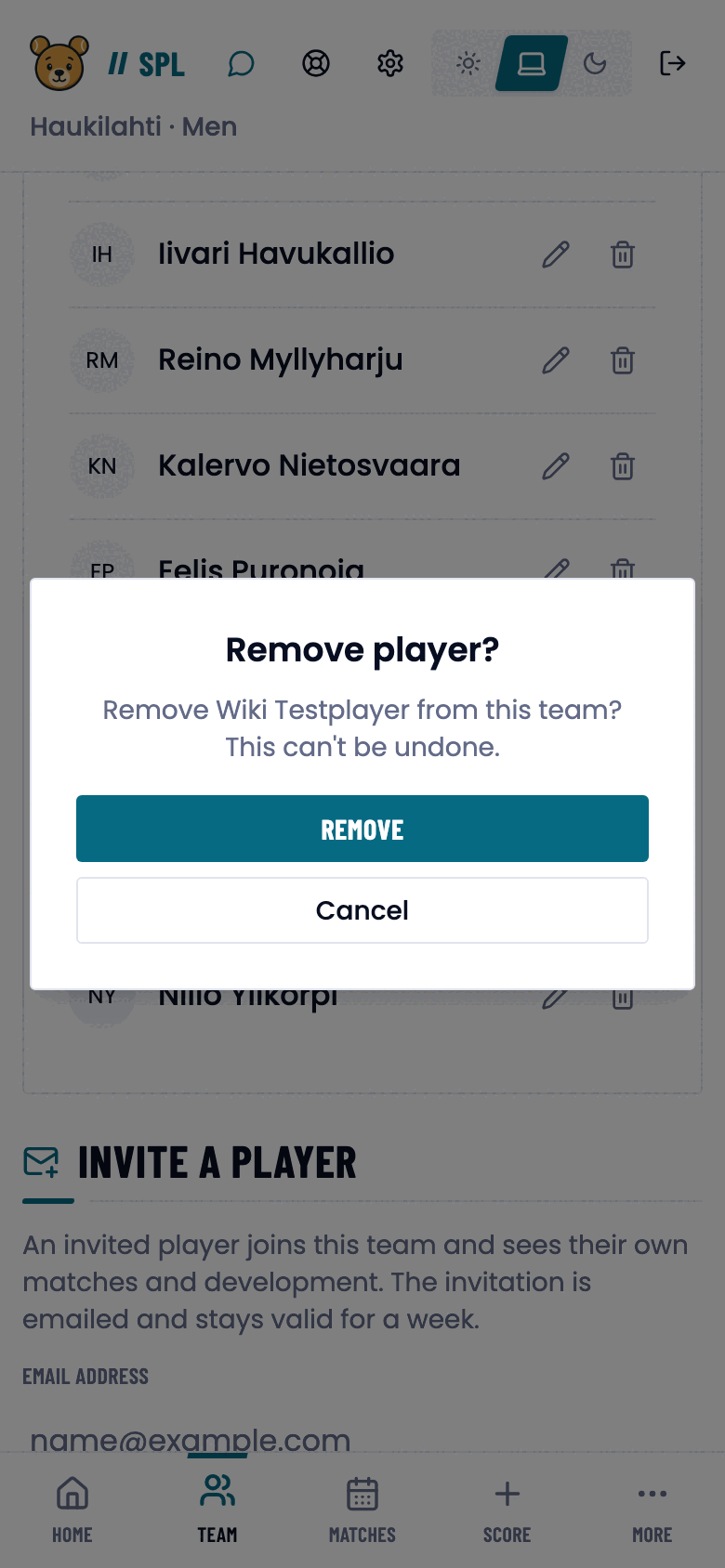
- The Players card lists the team’s players. The pencil edits a player’s email address, the bin removes them from the team.
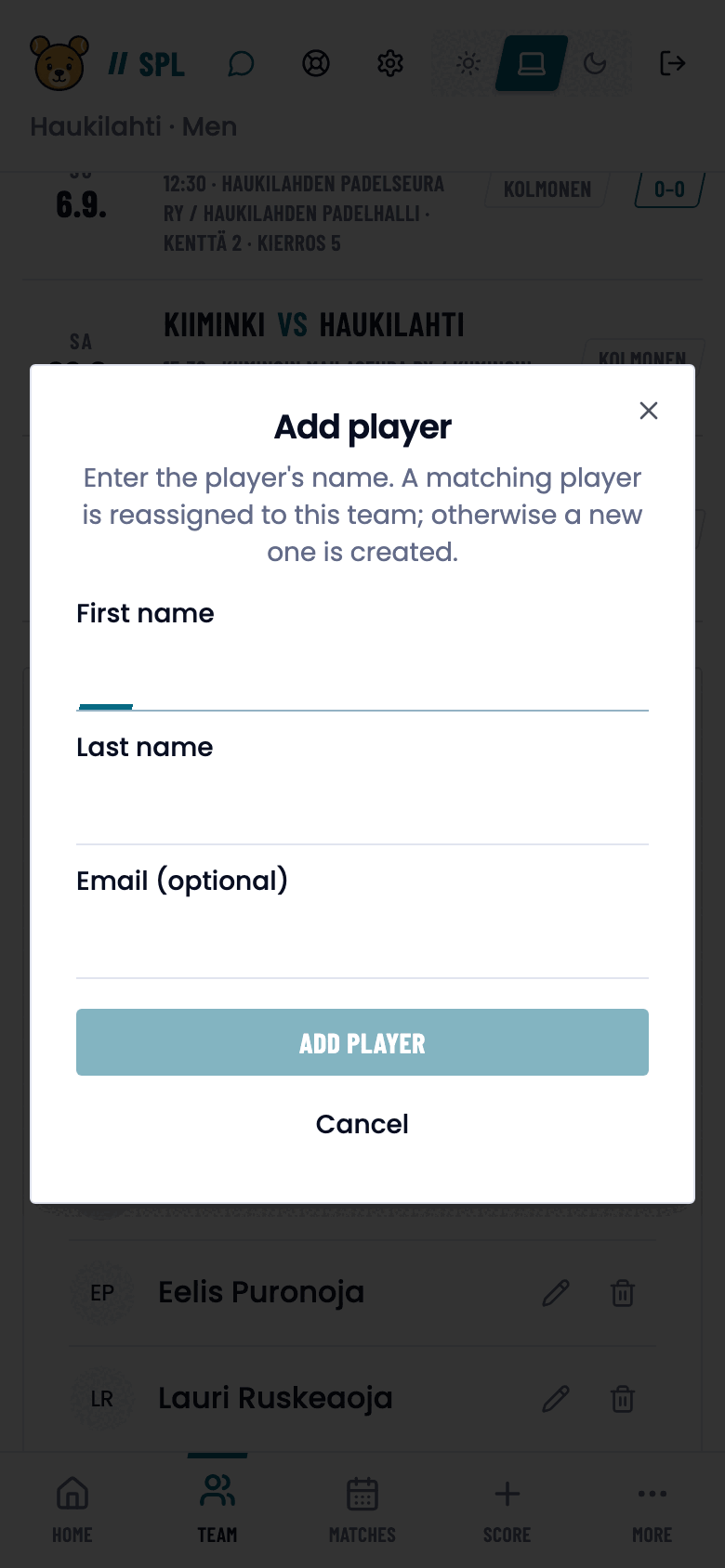
- Add a new player with Add player. Give a first name and last name, optionally an email address, and confirm.
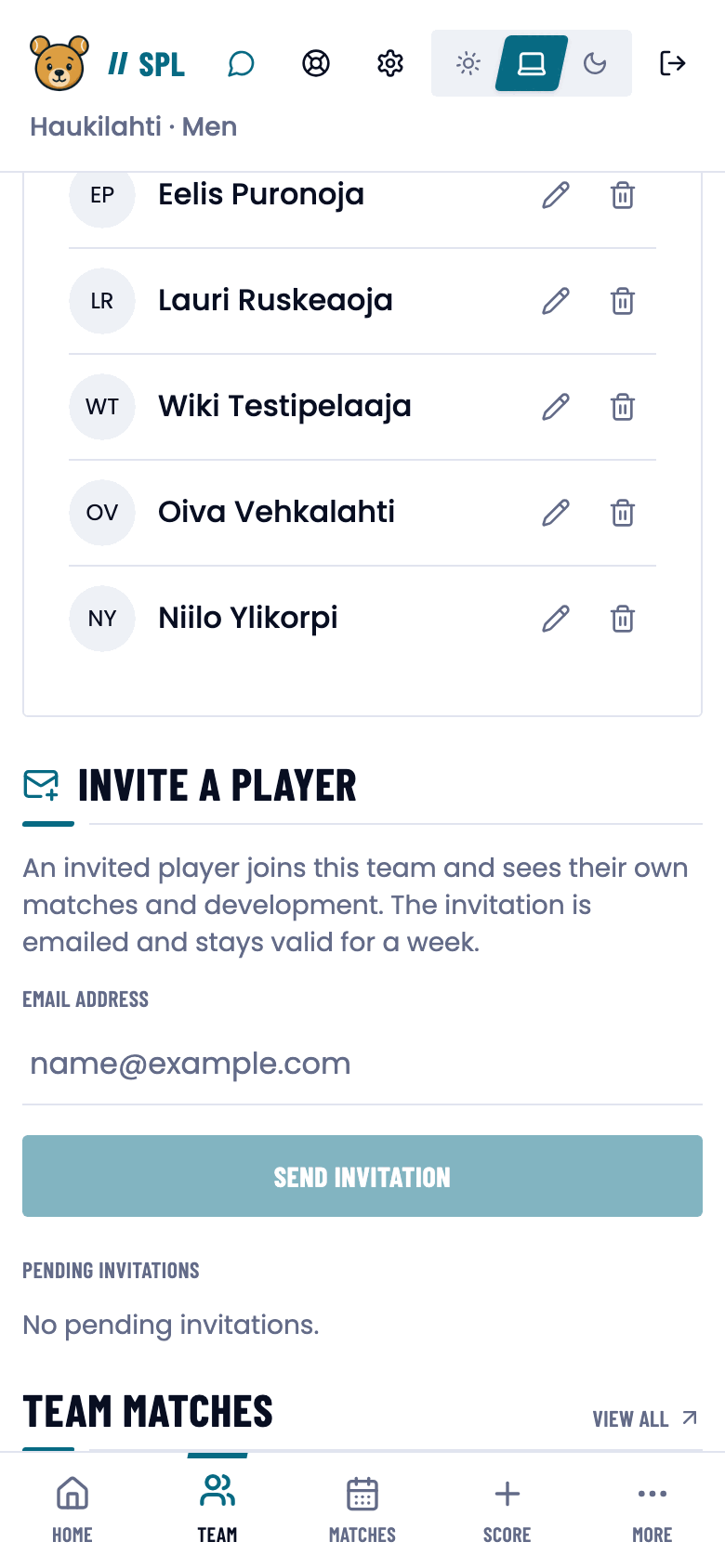
- If the player needs an account of their own, use the Invite a player card. Enter the address in Email address. Press Send invitation. Padlo emails the player an invitation with which they create their own account and join the team.
Good to know
Trouble?
I’m seeing the wrong team.
Switch teams from the team selector in the top bar. If you belong to only one team, there is no selector.
Another team’s page says “Team members only”.
A team’s matches and players are visible to its own members and the club’s admins.
My team page has no Manage tab.
You are not this team’s captain. Ask your club admin to appoint you.
I added a player to the wrong team.
Remove them with the bin and add them to the right team. No duplicate is created.
The team has too few players.
A team match needs three pairs, that is six players.