A club admin sees every team in the club from one view, opens each team’s analytics, and manages the teams’ players and captains.
The short version
Open My club from the left menu, press Manage team on the team you need, and add players on the Manage tab. Giving a player an email address sends them their invitation.
Before you start
Who it is forClub admin
You need club admin rights. A federation admin grants them by email invitation, valid for a week. After activation, My club appears in the left-hand menu.
You see your own club’s teams and players. A federation admin reaches a team’s player list from Overview, but not the club page or team analytics.
How it goes
- Sign in with your email and password. You land on the home page.
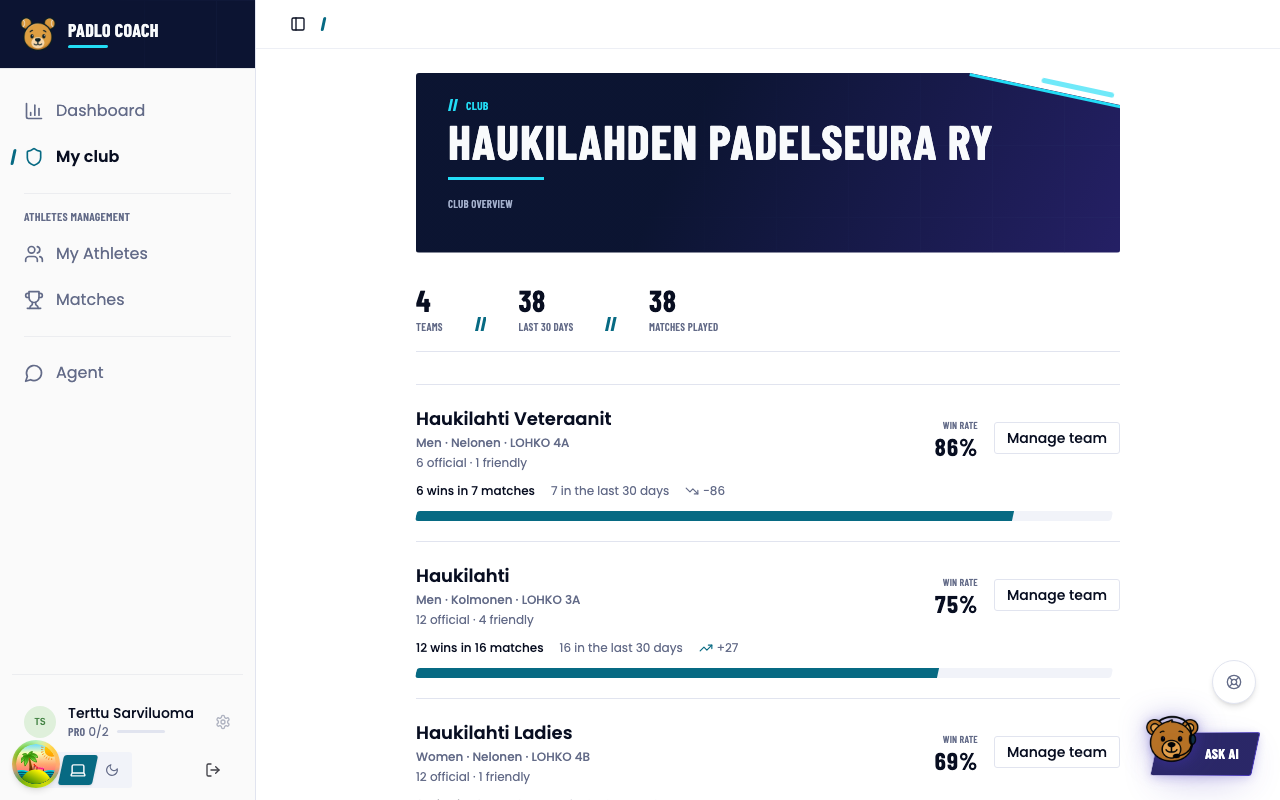
- Open My club from the left-hand menu. The top of the page is the club overview.
- Scroll the team directory. Each team shows its series and division, match counts, win rate, record and trend.
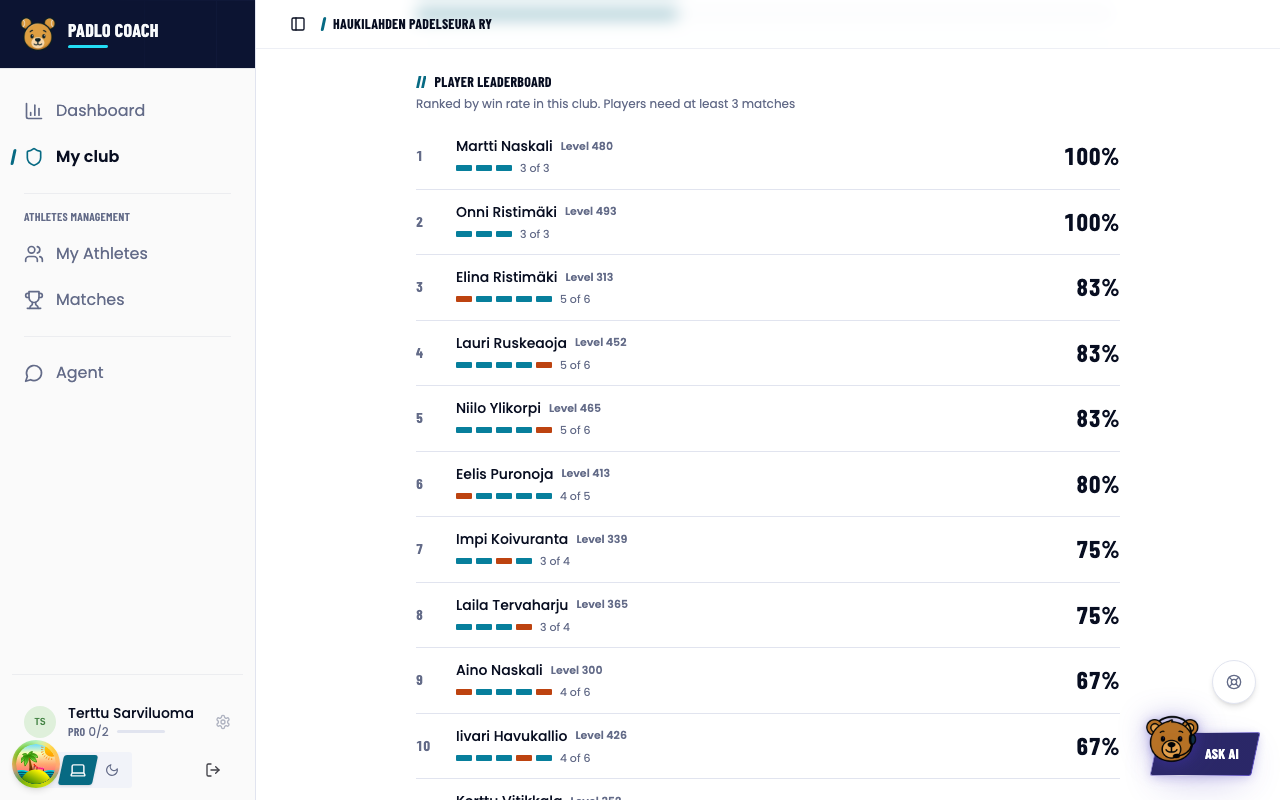
- The player leaderboard ranks the club’s players by win rate. A player needs at least three matches.
- Open a team with Manage team. The page has an Analytics tab and a Manage tab.
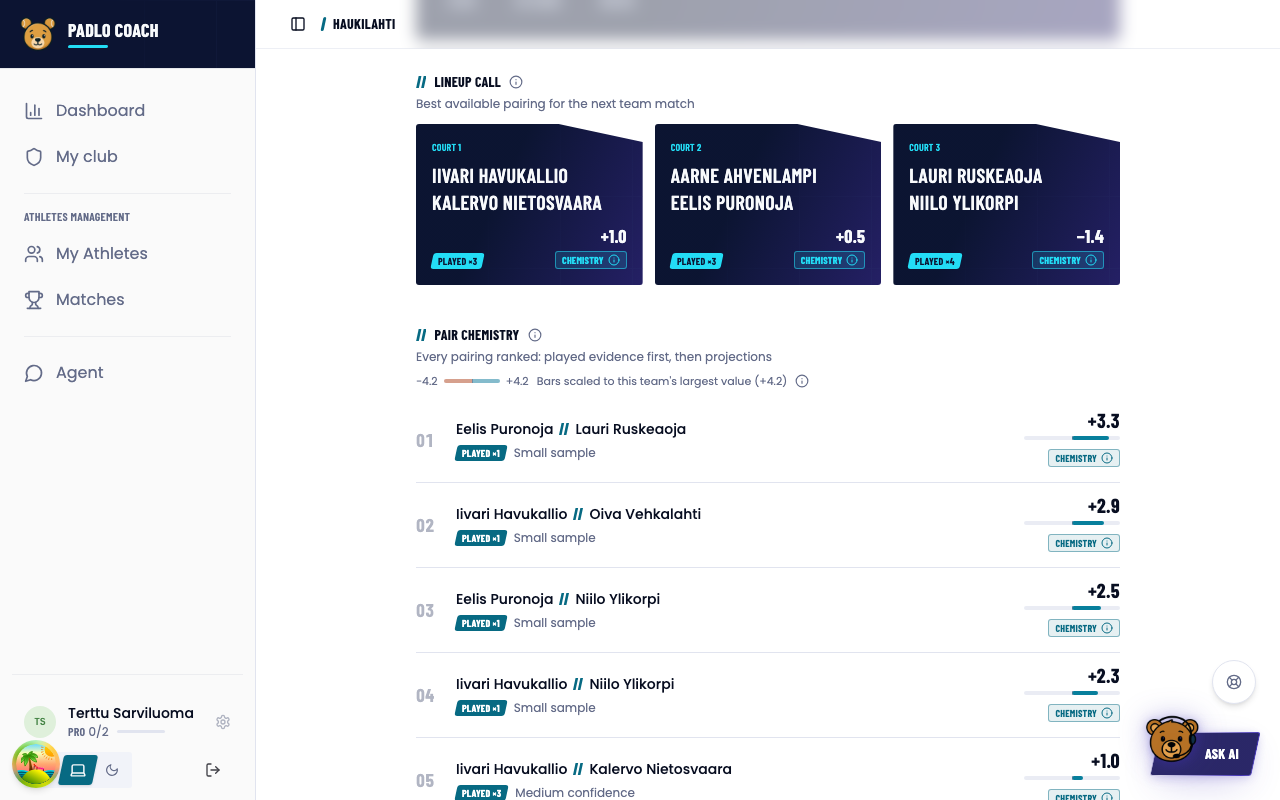
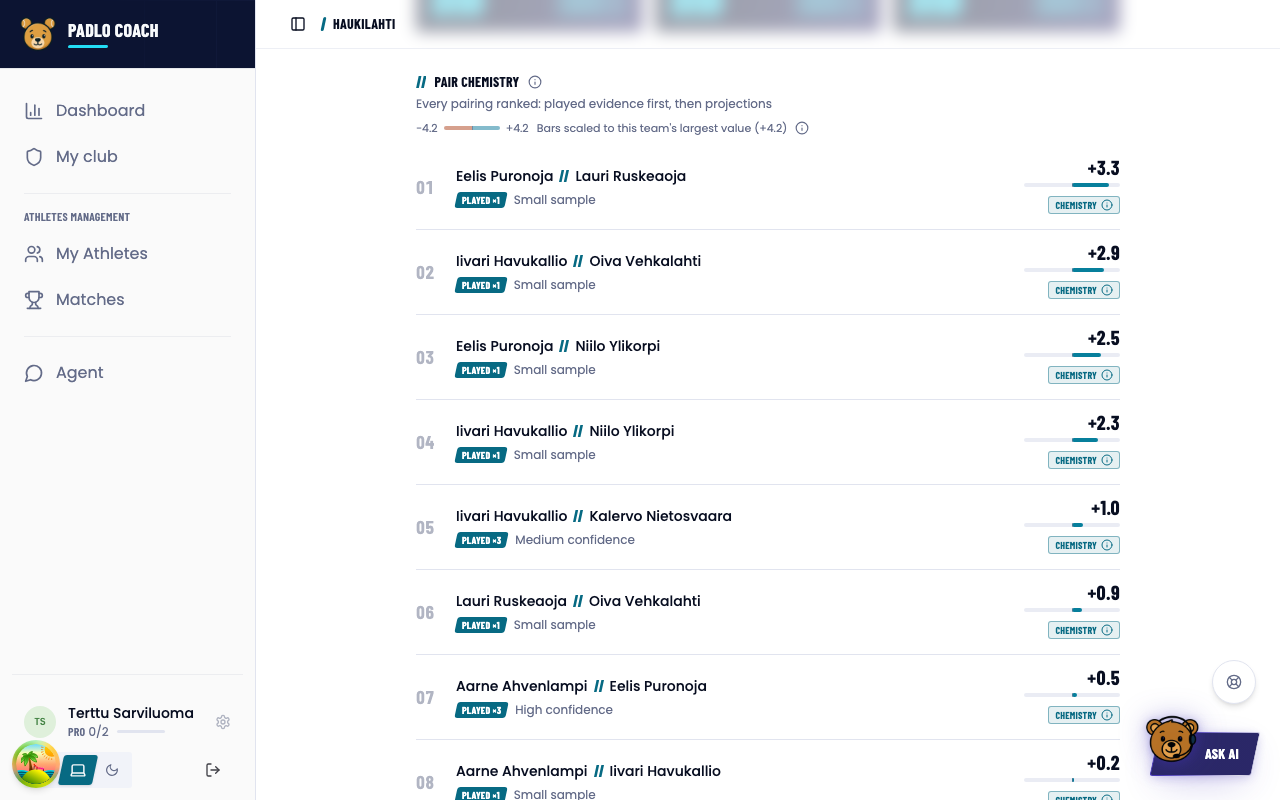
- The Analytics tab opens with three headline numbers and the lineup call for the next team match. Then come pair chemistry, form and trends, latest results and player impact.
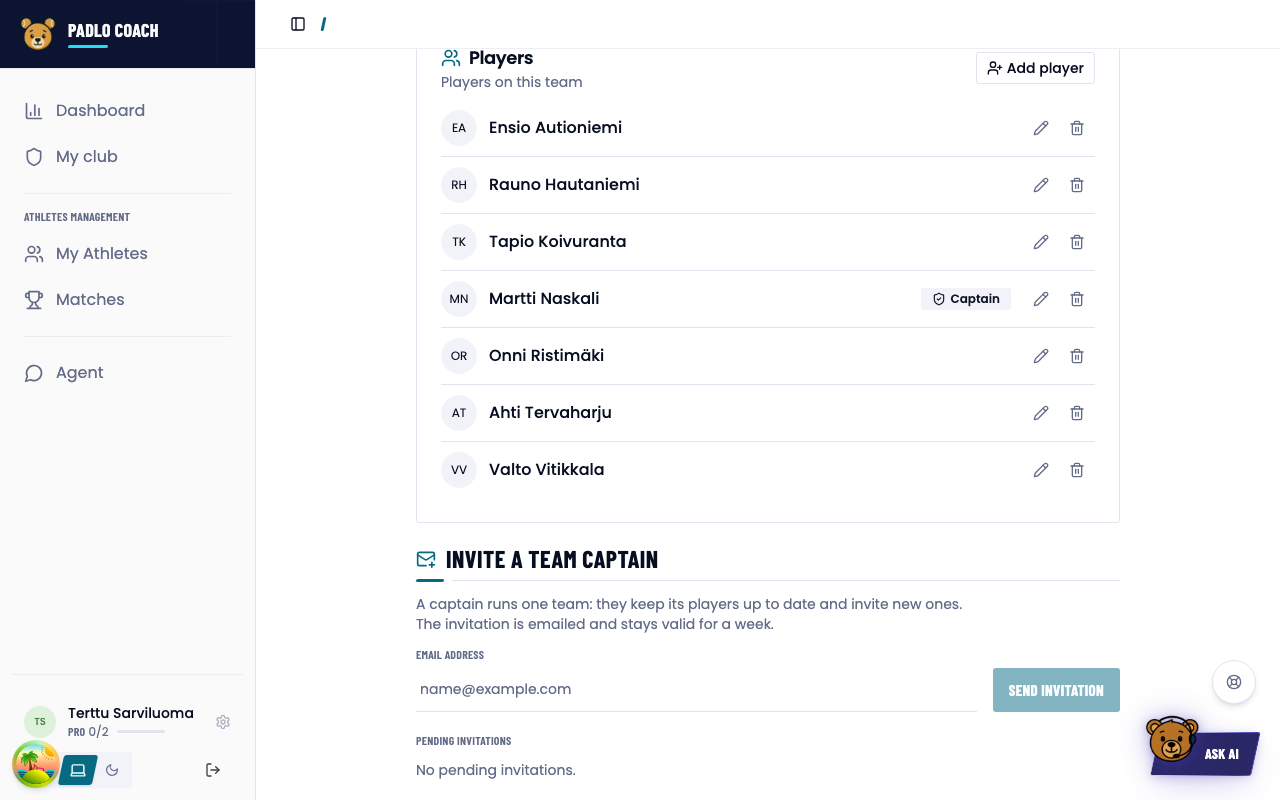
- Switch to the Manage tab for the fixtures, the players and the captains.
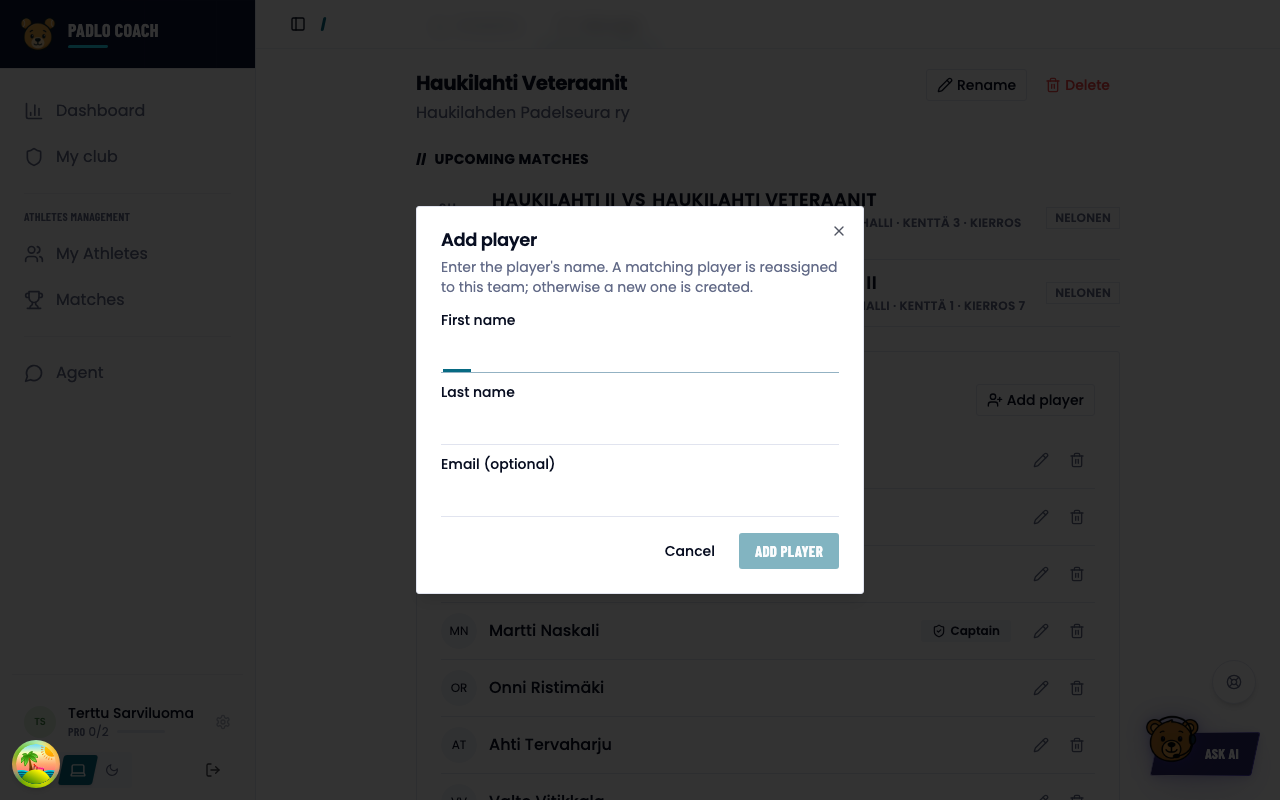
- Add a player with Add player. Give a first and last name, the email is optional. A player with that name is reassigned to this team; otherwise a new player is created.
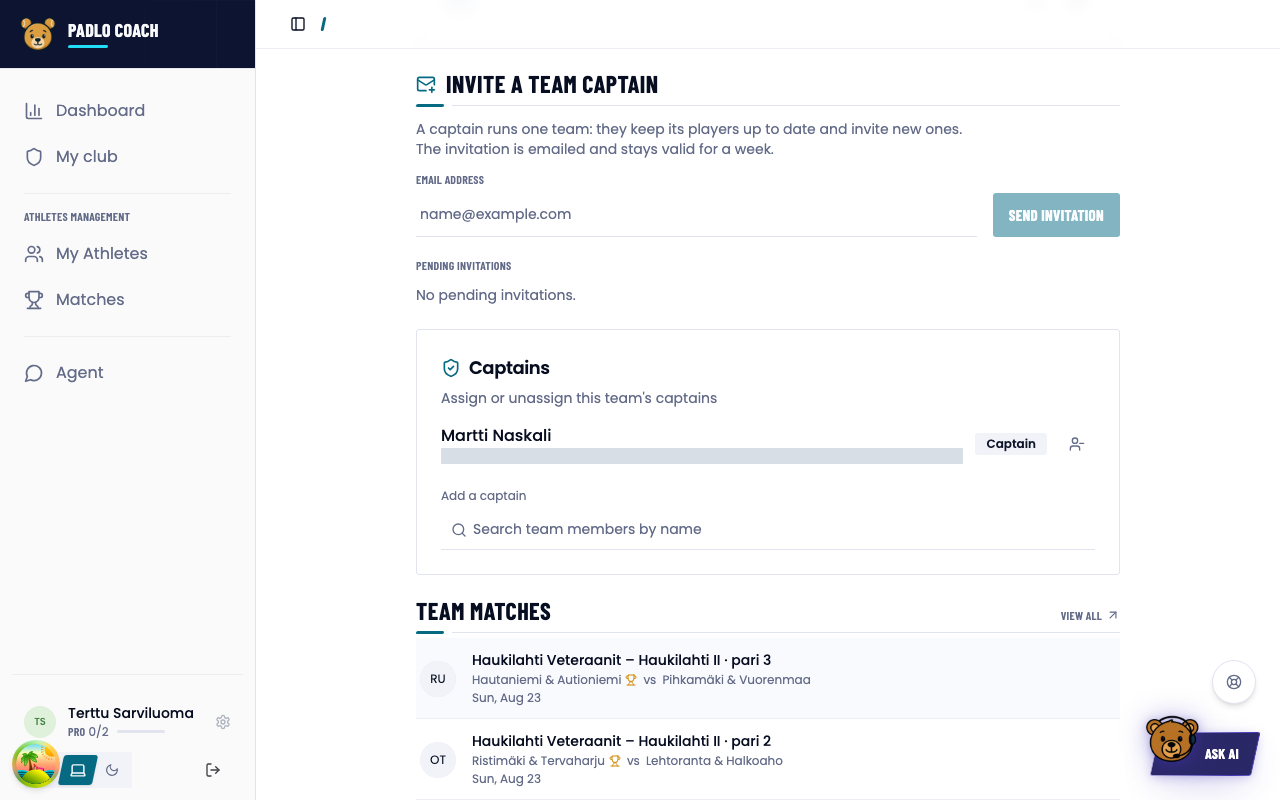
- Set a captain: type a name into Add a captain and pick the member from the list. Captaincy can also be removed.
The video walks the same path: the club page at , team analytics at and managing players at .
Inviting a player by email
The email address is what turns a player into a user. Give the address in the Add player dialog, or afterwards from the pencil icon on their row. Padlo emails the player an invitation with which they create their own account and join the team. Padlo confirms the send with a notice.
Without an address the player is only a name in the lineup: their matches are recorded normally, but they cannot get into the app themselves.
Captain invitations have their own block, Invite a team captain. Pending invitations are listed below it.
Good to know
Trouble?
Why is there no win rate for a team?
The team has not finished a scored match yet.
Why can’t I make someone a captain?
A captain needs a Padlo account. Give them an email address first, which sends the invitation.
Why is a player missing from the leaderboard?
Ranking needs at least three matches.
I can’t see another club’s numbers.
That is by design. You see only your own club’s teams and players.
Video transcript
The guide video and the transcript are in Finnish. It is the speaker’s own spoken wording, so it carries colloquialisms the body text does not.
Show the full transcript (1:14)
- 00:00 Näytän seuran ylläpitäjän silmin, miten voit hallita joukkueita, joukkueiden pelaajia ja nähdä myös meidän analyysiämme kaikista joukkueista.
- 00:10 Eli ensin pitää kirjautua sisään, tässä tapauksessa sähköpostilla ja salasanalla.
- 00:16 Tulemme etusivulle, josta näemme viimeisimmät tulokset, mutta tärkeimpänä mennään meidän oman seuran sivulle.
- 00:24 Täältä näet kaikki seuran joukkueet, ja kun klikkaamme yhden joukkueen auki,
- 00:31 niin näemme täältä meidän antamamme kokoonpanoehdotuksen seuraavaan joukkueotteluun, parien kemiat,
- 00:39 vireystilan, trendit, viimeisimmät tulokset ja kaikkien pelaajien vaikutuksen.
- 00:46 Mutta voimme myös hallita joukkueen pelaajia.
- 00:49 Täältä voimme esimerkiksi lisätä pelaajan, voimme vaihtaa tai lisätä kapteenin ja voimme muokata pelaajaa.
- 00:59 Jos annamme pelaajalle sähköpostiosoitteen, niin hänelle lähtee kutsu Padlo-sovellukseen.
- 01:06 Noin, se on noin helppoa. Hauskaa pisteyttämistä!