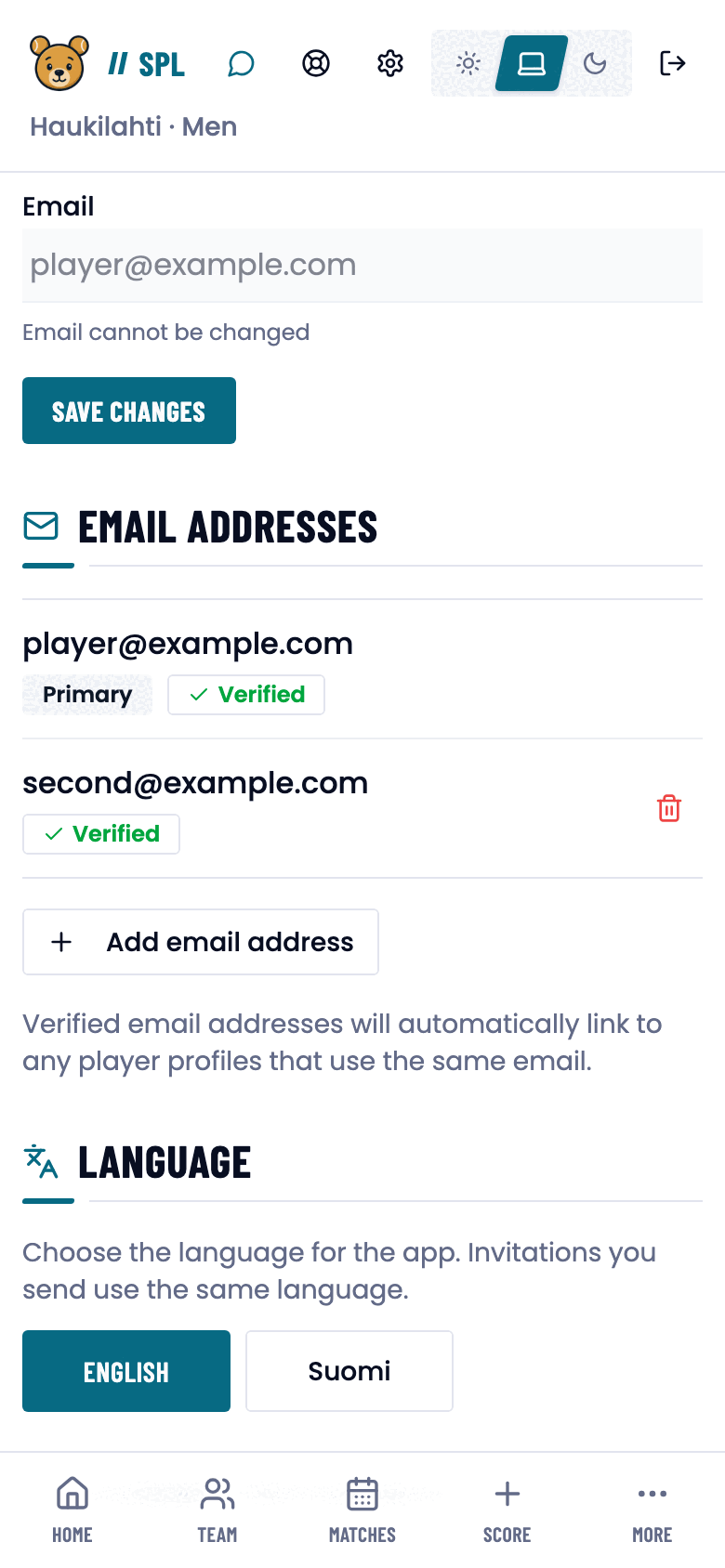
You cannot change your primary address yourself. Everything else here you can.
The short version
Sign in with the email address your invitation went to. If the password is gone, press Forgot password? on the sign-in page and follow the link in the message. Everything else on this page lives in Settings.
Before you start
League players and captains get an account created for them, see activation: sign in with the address the invitation went to. A coach creates their own.
Signing in
Fill in your email and password and press Sign In. Continue with Google works if your Google address is the same as your Padlo address.
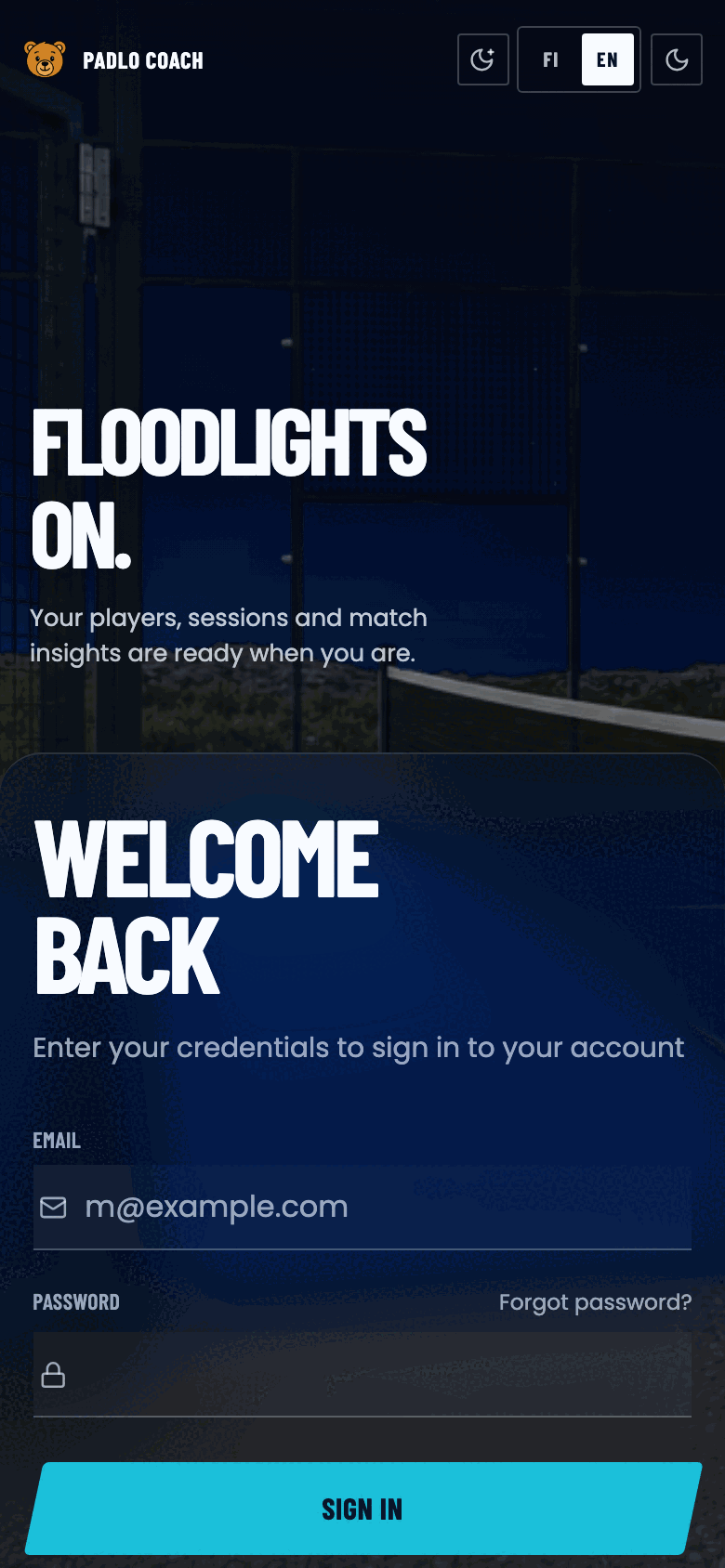
A forgotten password
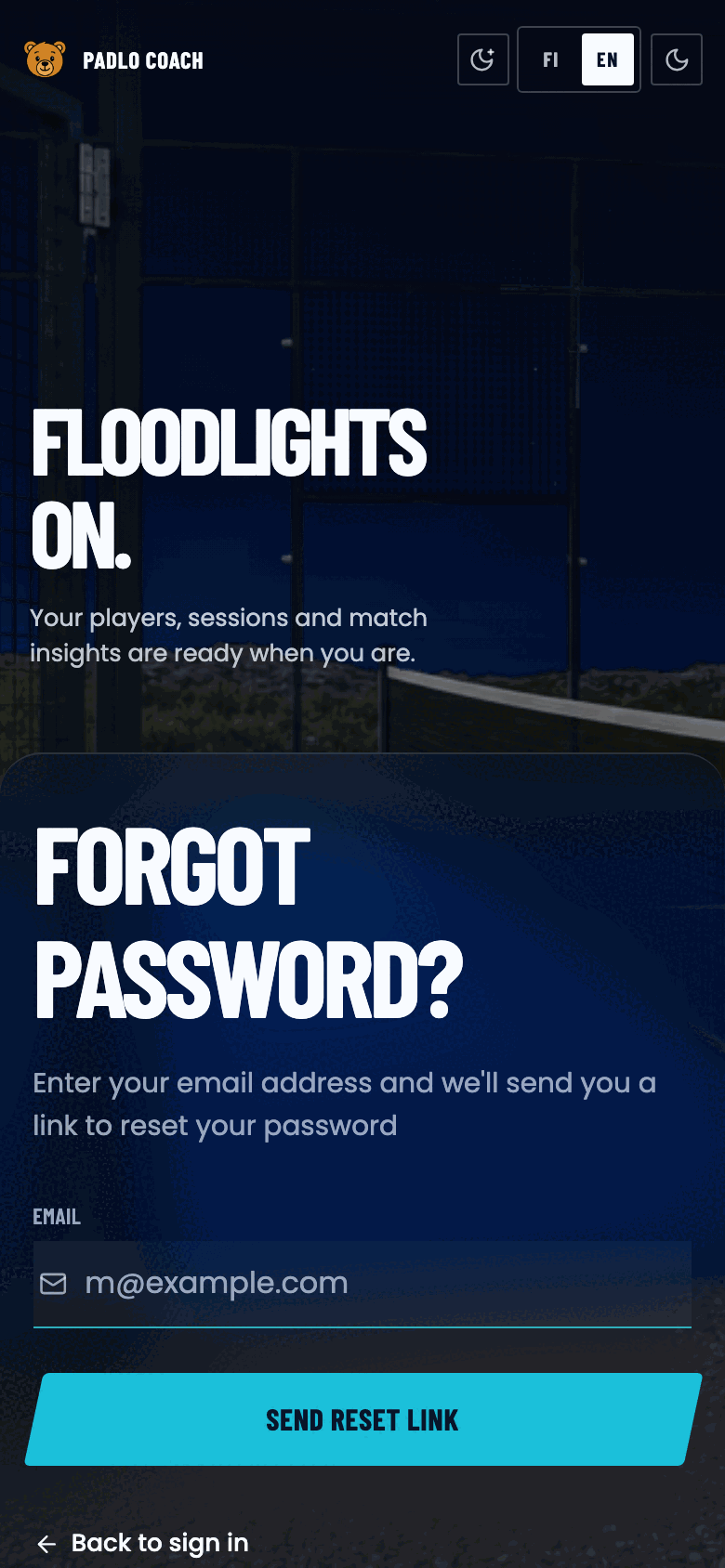
- Press Forgot password? on the sign-in page.
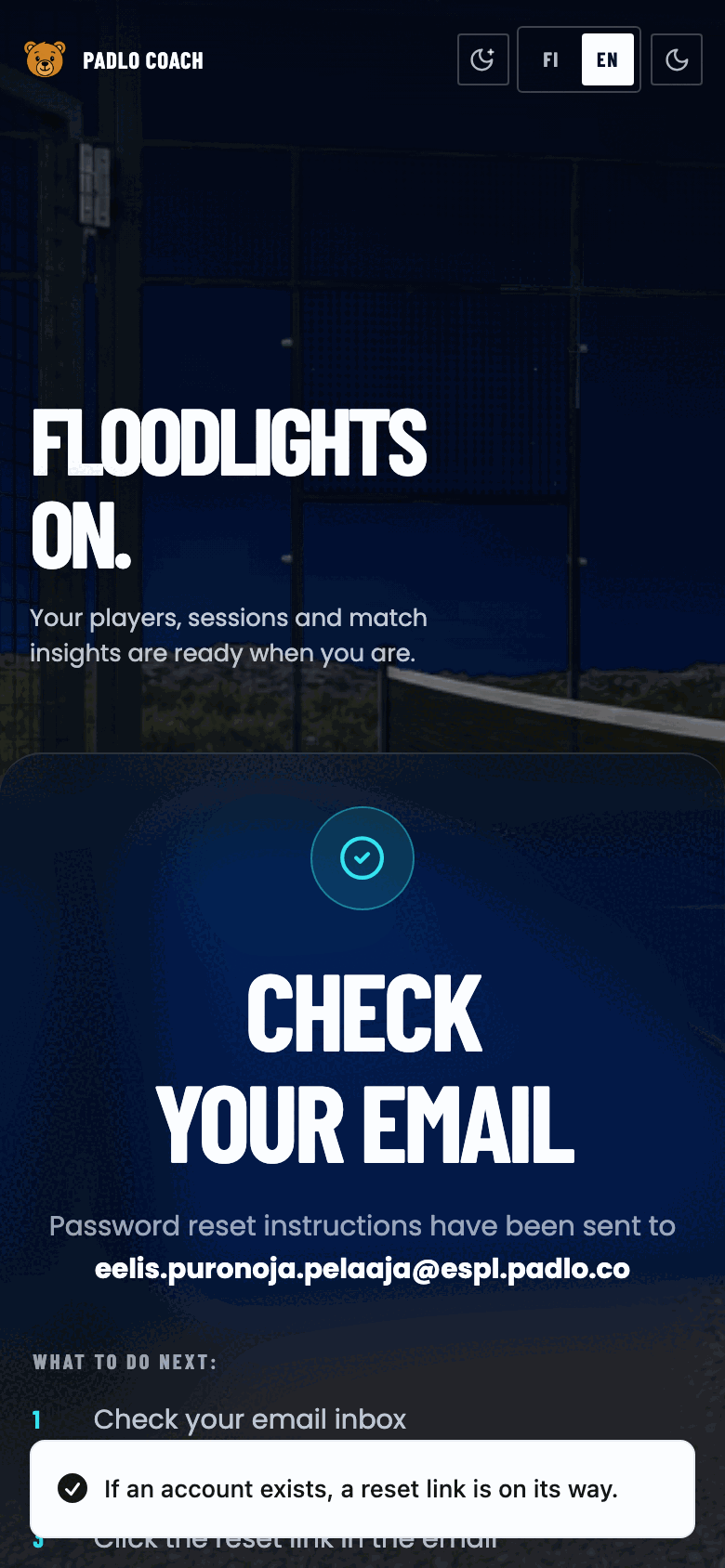
- Enter your address and press Send reset link. The answer is the same whether or not the address has an account.
- Open the Reset password button in the email. The link is valid for six hours and works only once.
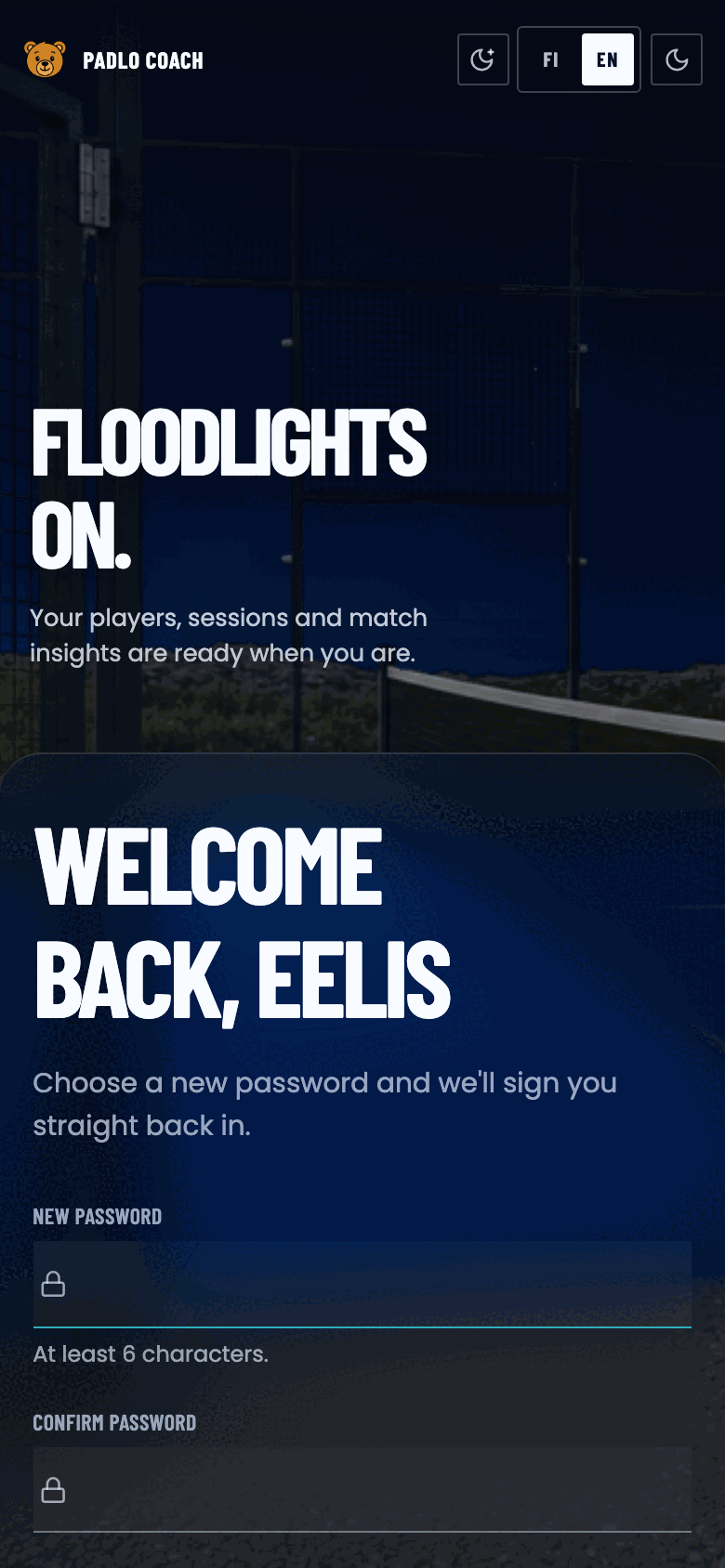
- Type your new password into both fields and press Reset password. You are signed in immediately.
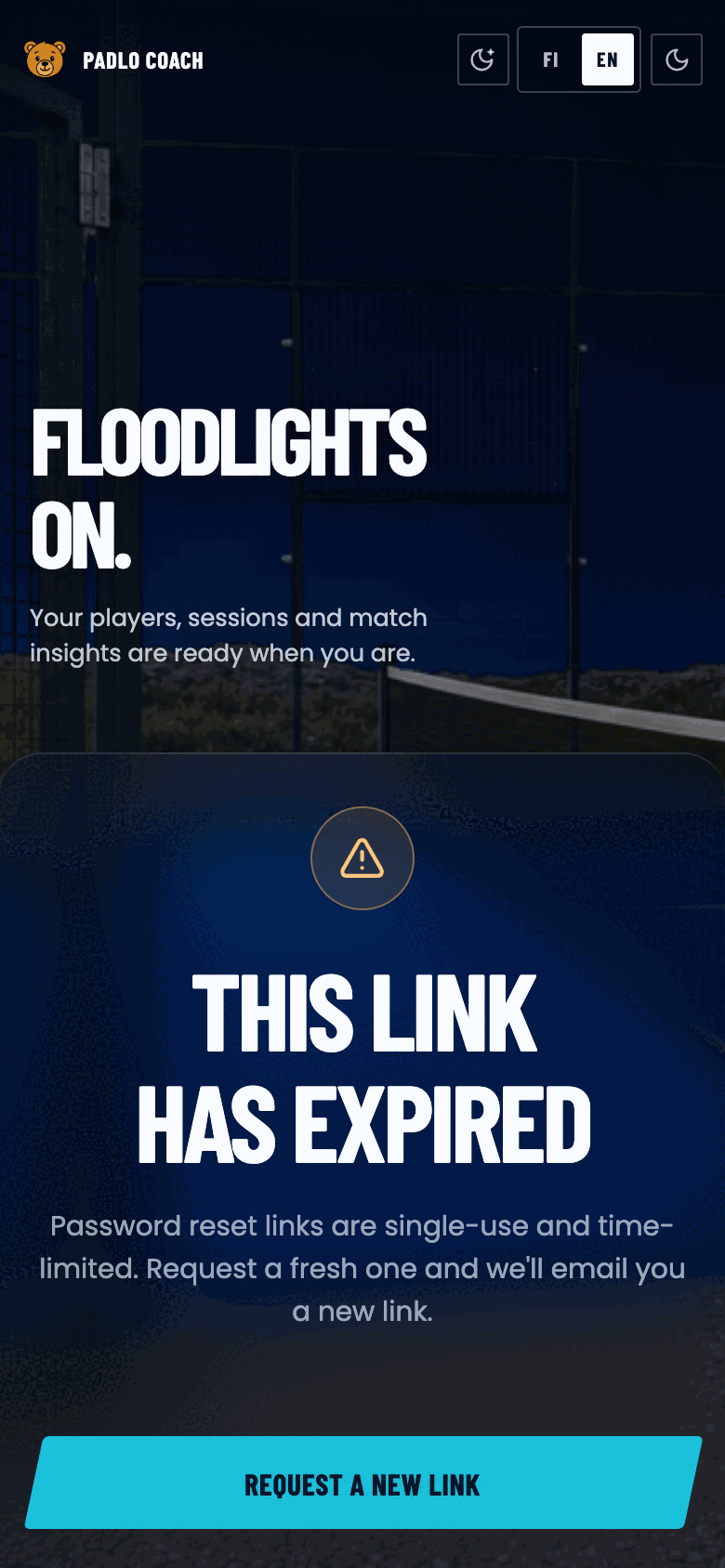
An expired, already used or invalid link all show the same screen: This link has expired. Press Request a new link.
Changing your password
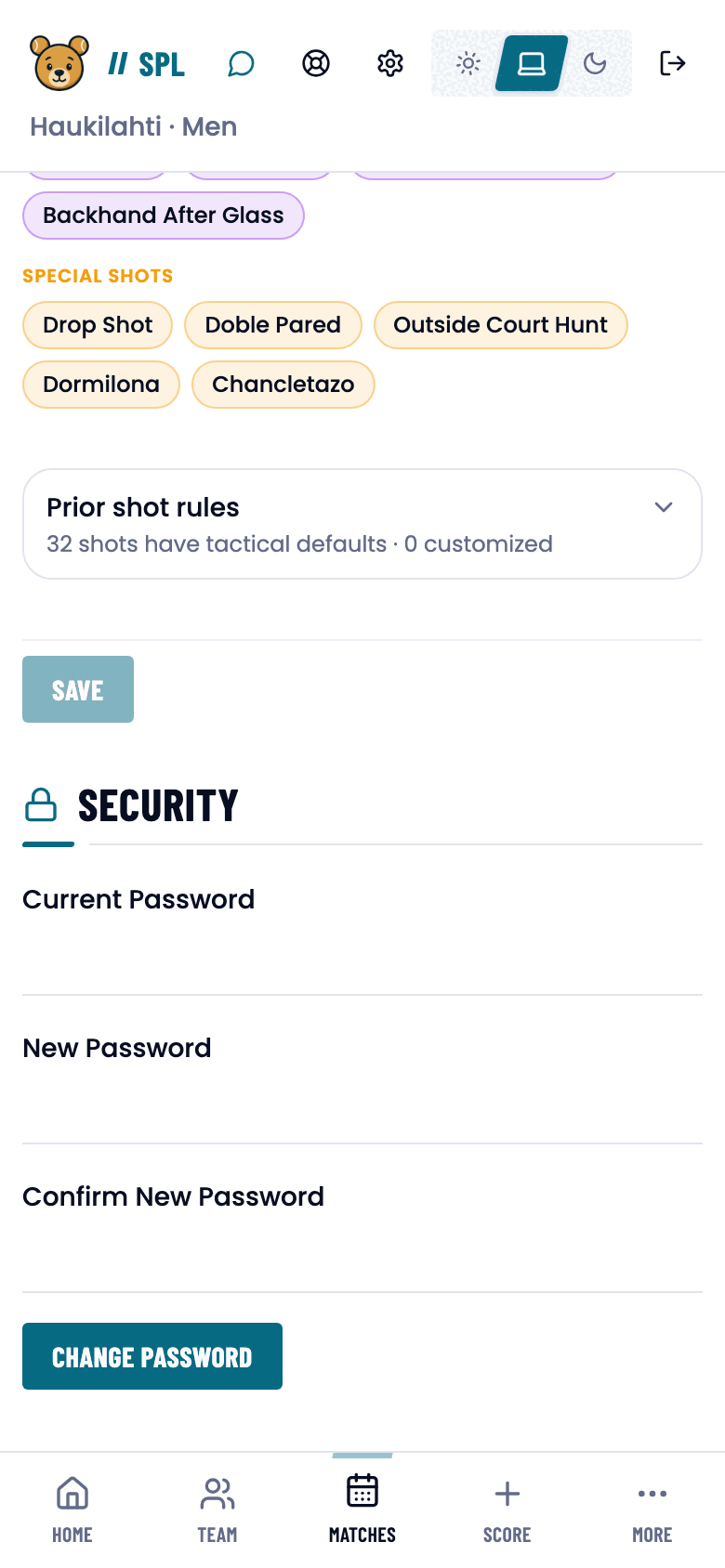
Open the Security section of Settings. Fill in your current and new password and press Change Password. A new password needs at least six characters.
Secondary email addresses
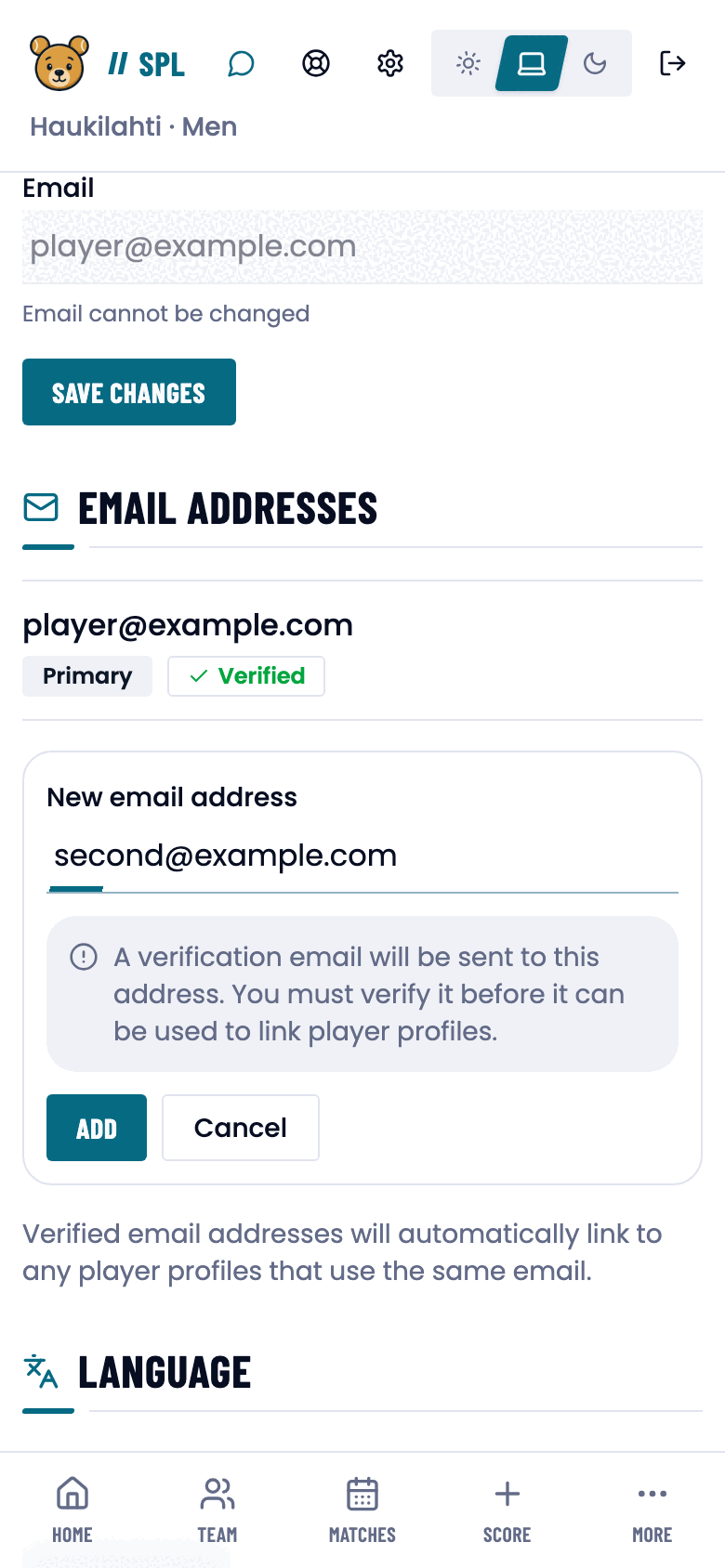
You cannot change the primary address yourself, but you can attach others. A verified one links to any player profile using the same address, so old matches attach to the right person.
- Open the Email Addresses section of Settings.
- Press Add email address, type the address and press Add.
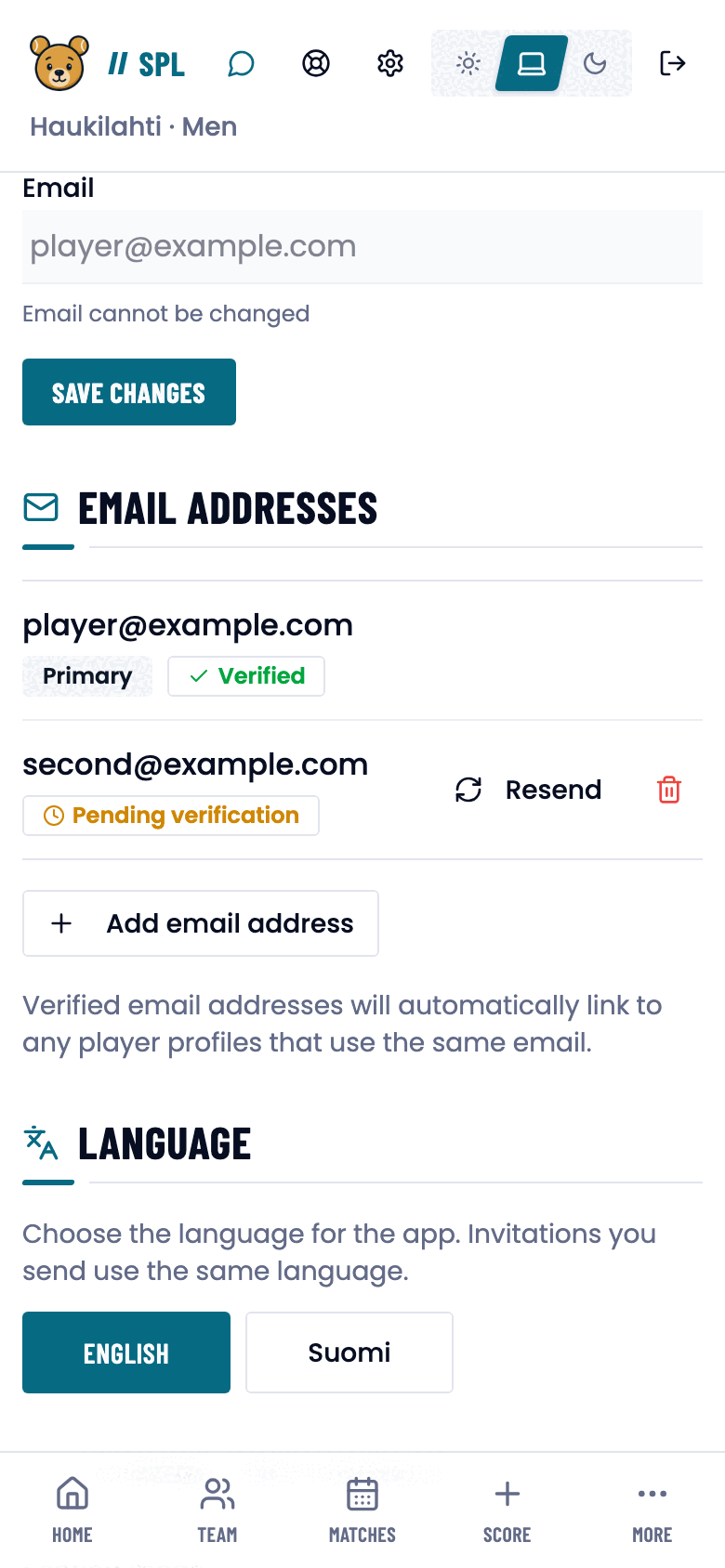
- The address is marked Pending verification. The link is valid for 24 hours.
- Open the Verify Email button in the message. The badge changes to Verified.
Language
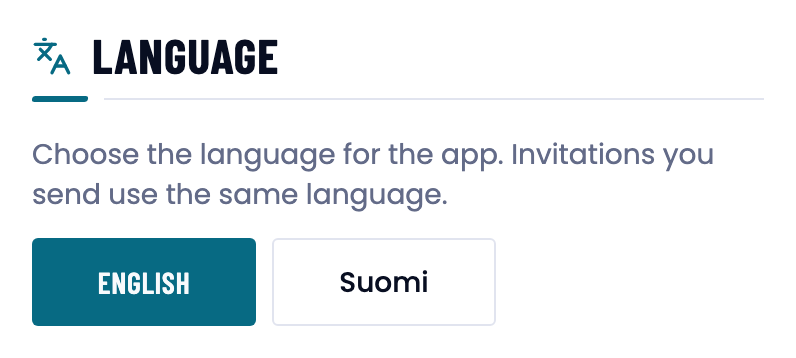
The Language section of Settings offers Suomi and English. The choice is stored in the browser and also applies to the invitations you send.
Trouble?
“Invalid email address or password”. Check your keyboard language and capitals. Order a new password link if you need one.
“Too many sign-in attempts”. Too many attempts came from the same network in a short time. Wait a few minutes.
Google sign-in doesn’t recognise my account. Google only works when your Padlo primary address is the same as your Google address.
The address is already in use. It belongs to another Padlo account. Sign in with that account, or contact support.
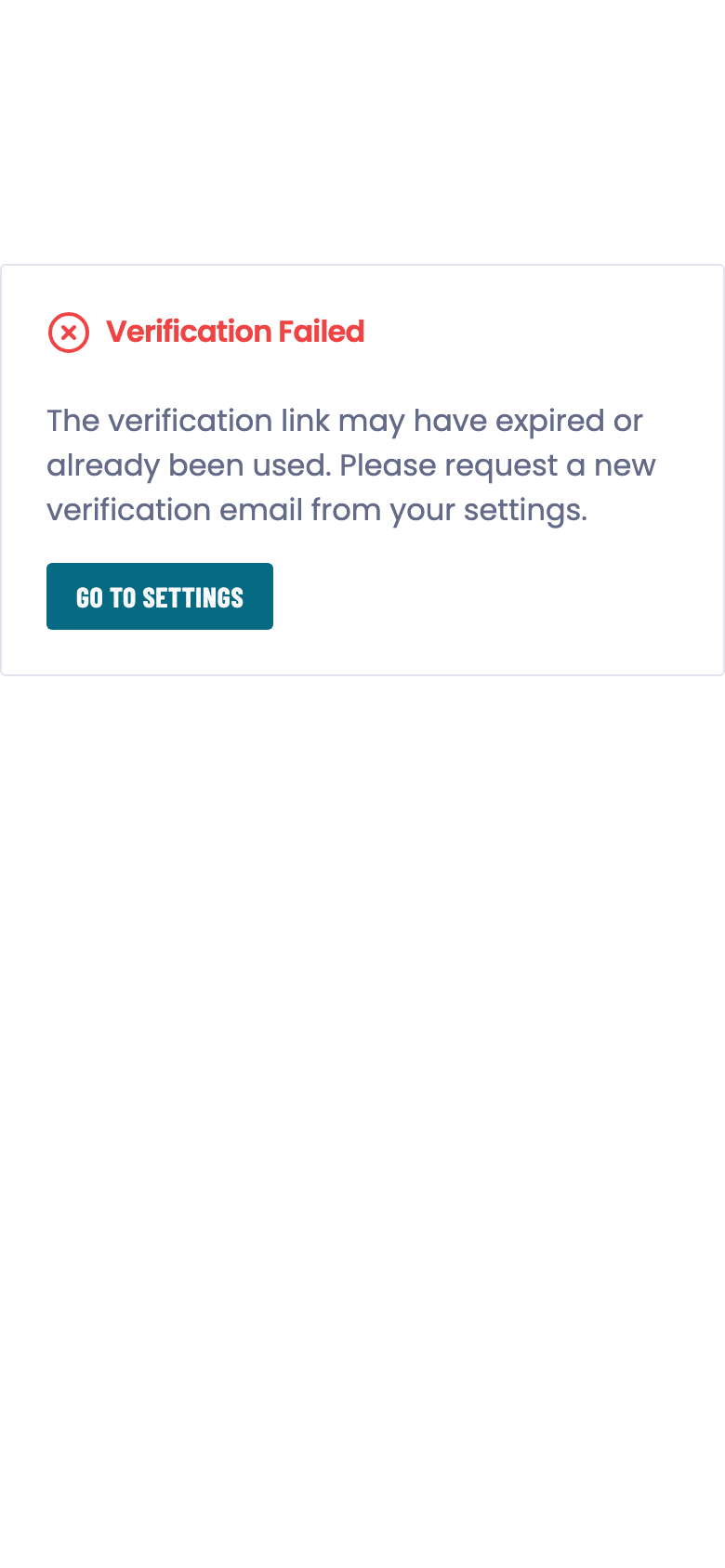
The verification link didn’t work. It is valid for 24 hours and works once. Press Resend next to the address in Settings.
I don’t remember which address I was added with. Ask your club contact. The invitation goes to the address on file.