Every official league match in Padlo is a team match: three pairs from each side, one match per pair.
The short version
Open the team match from your home page, set your own pairs under LINEUPS and save. Press Start scoring on the first pair’s row and record the points as in any match. A team match always records full detail and never costs anything.
Before you start
Who it is forCaptainPlayerClub admin
- A league match is built around a fixture. New team match creates a friendly outside the fixture list, which does not count towards the table.
- Members of either team can record the same team match. A club or federation admin can open the team match, set the lineups, start a pair and finish the match, but recording points belongs to the team’s own members.
- Three pairs need six different players.
Open the team match
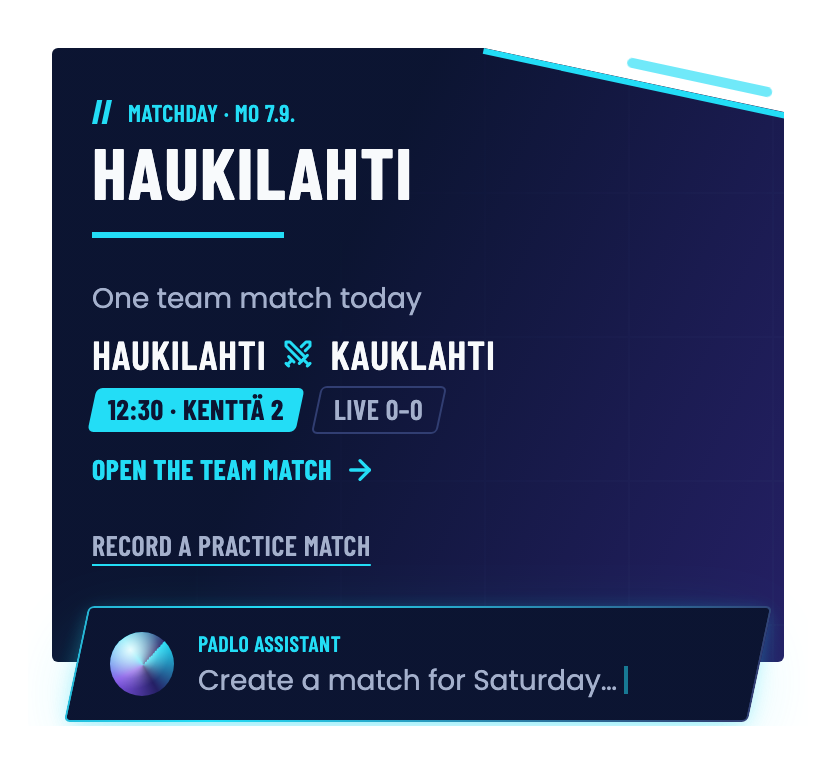
- Open Home. The top card is your team’s next match.
- Press Open the team match. If it has not been opened yet, the button reads Create the team match.
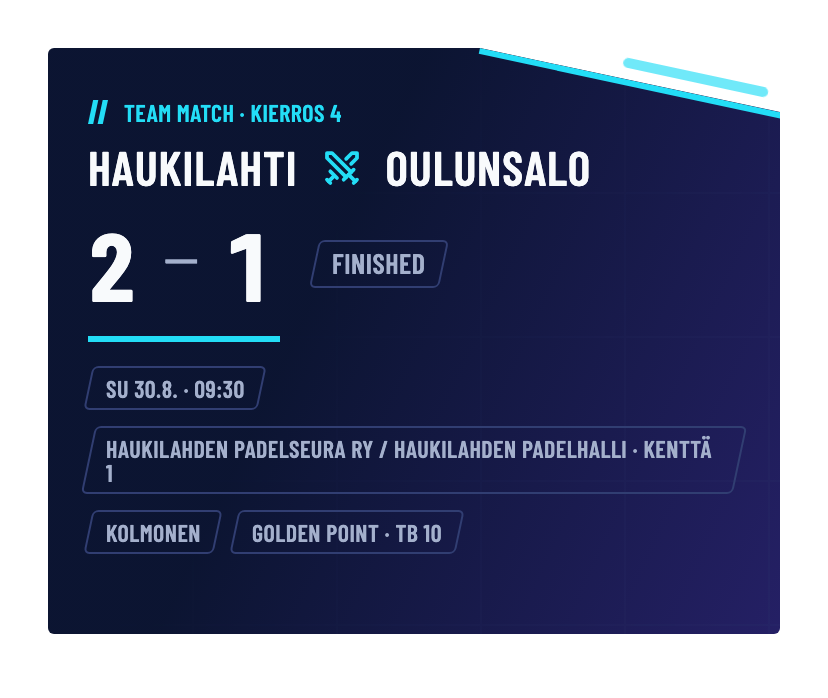
- The top bar names the teams, the score in pairs and the state: Upcoming, Live or Finished.
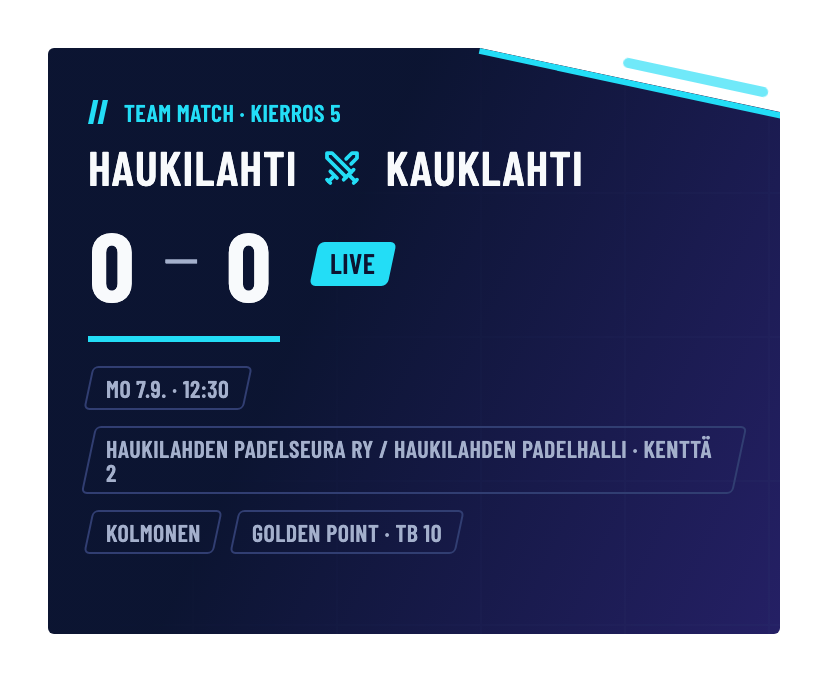
The chips in the top bar carry the match rules, for example the golden point and TB 10. The rules are fixed once the first pair starts.
Name three pairs
Before the first ball members of either team, and the club or federation admin, can edit both lineups. In practice the captain does it.
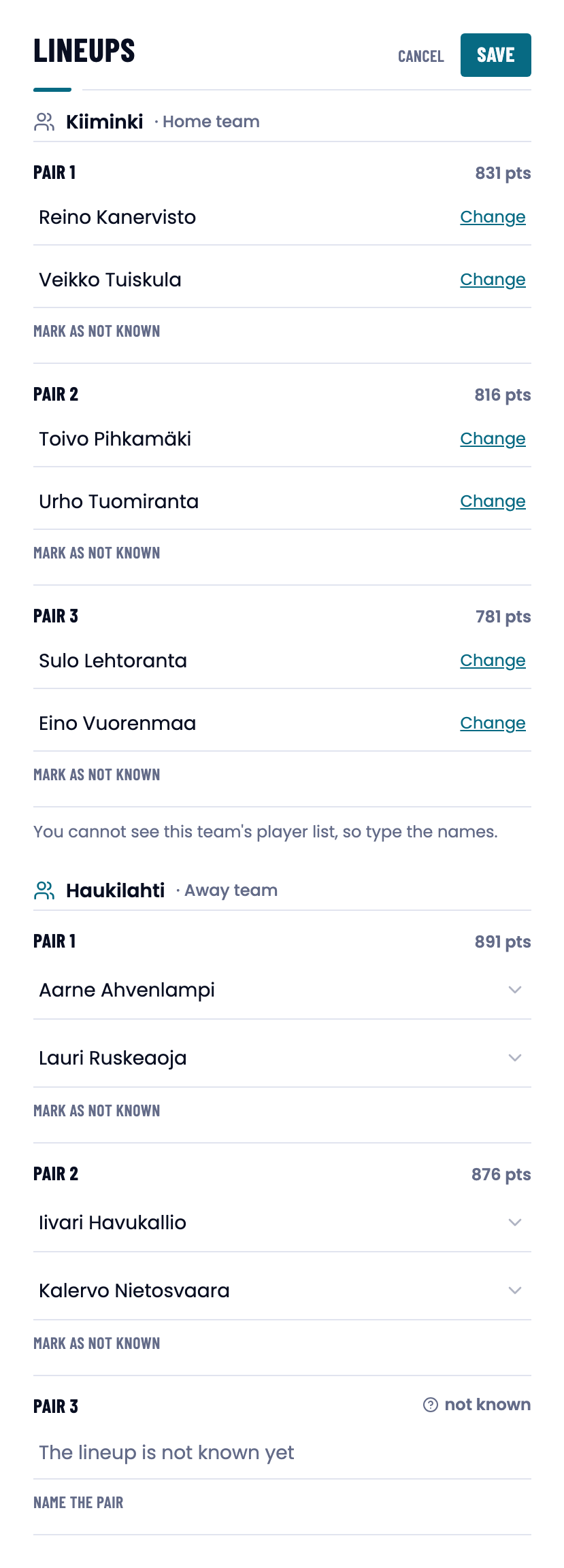
- Scroll to LINEUPS and press Edit.
- Pick the players for your own team’s pairs. A player can only play one pair.
- You cannot see the opponent’s player list, so type the name straight into the field. Change replaces a name already picked.
- If you do not know a pair yet, press Mark as not known.
- Press Save.
The opponent’s own record of their own side stays hidden until the first ball. Those rows read “The lineup is published when the match starts”. If the teams recorded the same side differently, the record that names the most pairs is the one that counts. A tie is broken in favour of that team’s own record.
Every pair locks at the first ball
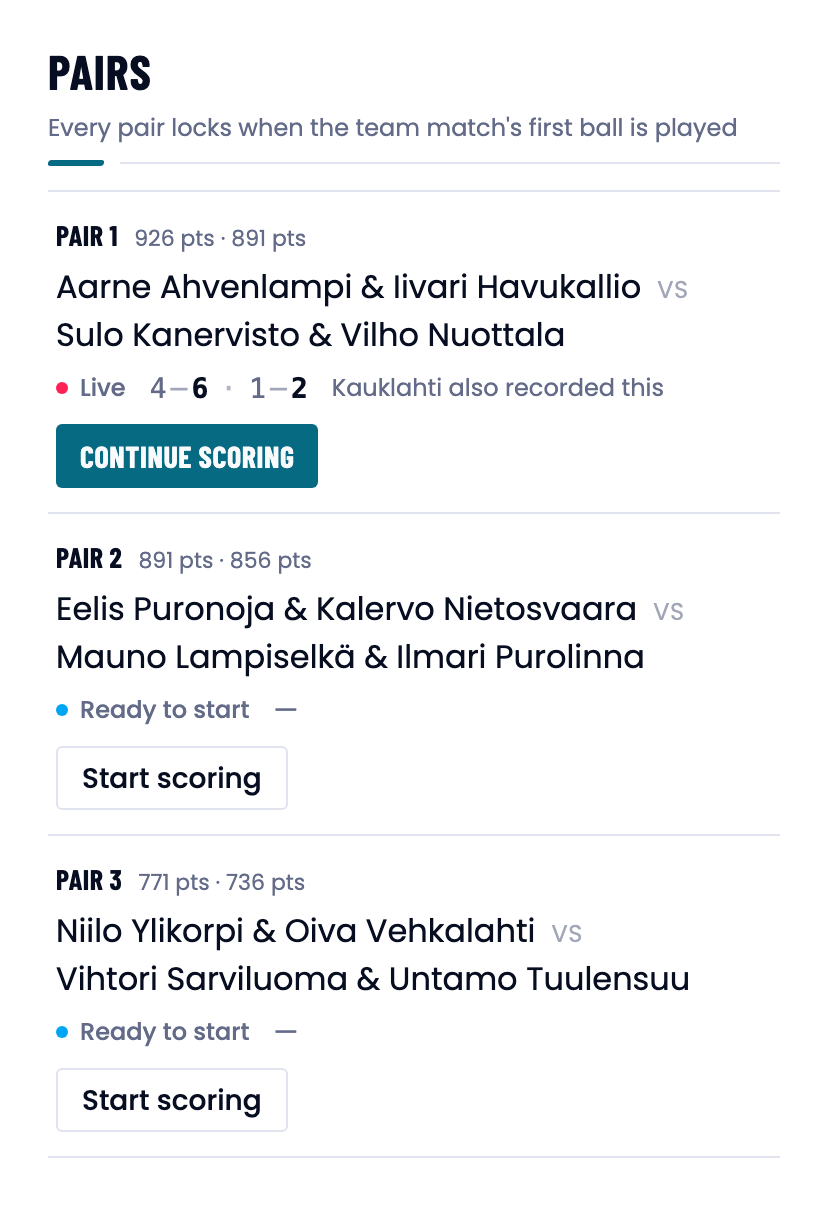
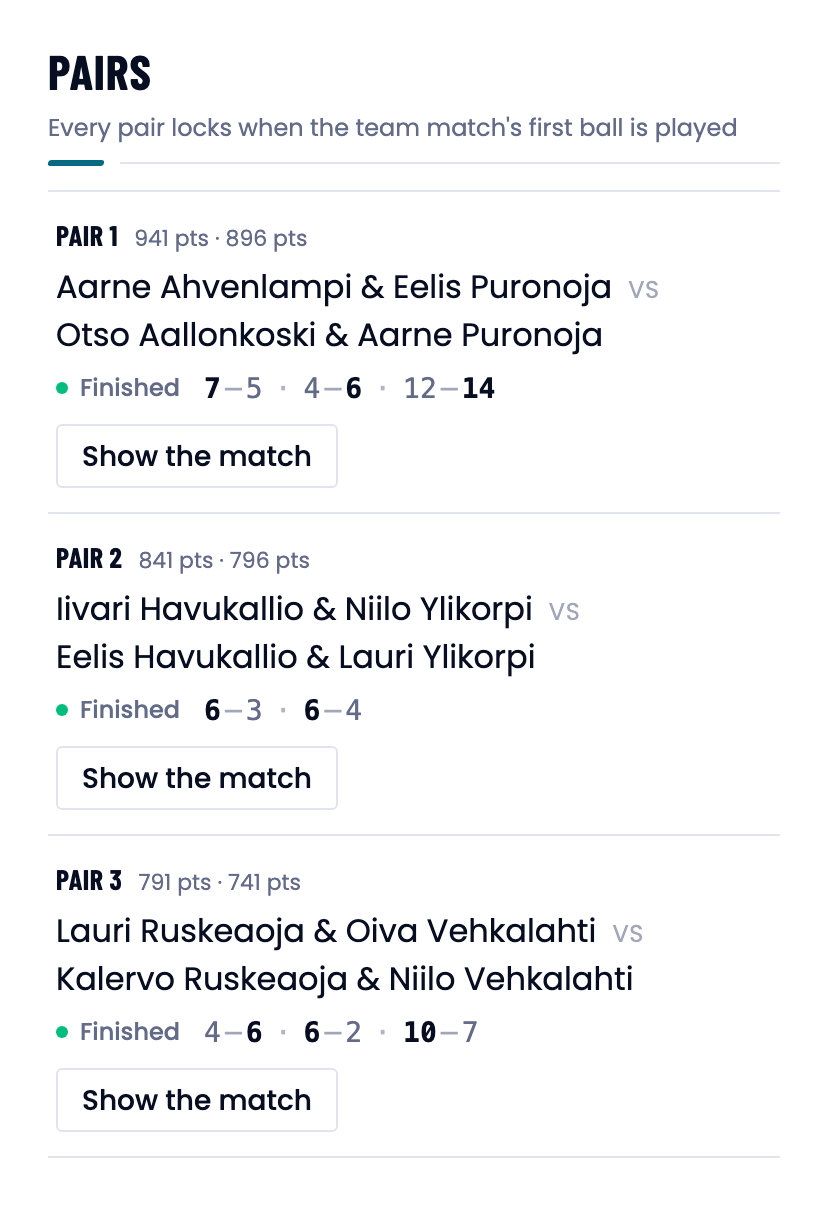
The first ball of the team match locks the whole tie at once: all three pairs, on both sides. The app says so on the PAIRS heading row: “Every pair locks when the team match’s first ball is played”.
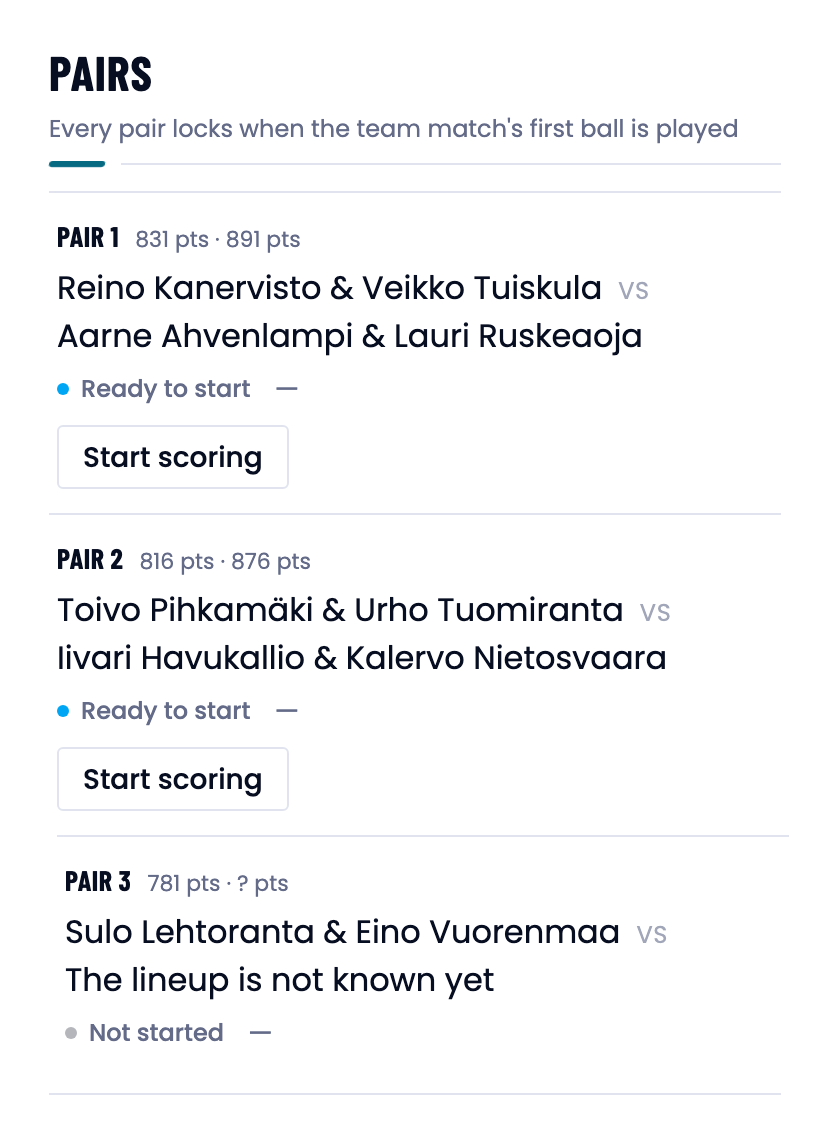
After the lock all six pairs are visible to both teams and LINEUPS carries the line “Lineups are locked, the team match has started”. The Edit button disappears unless some pair was left as not known.
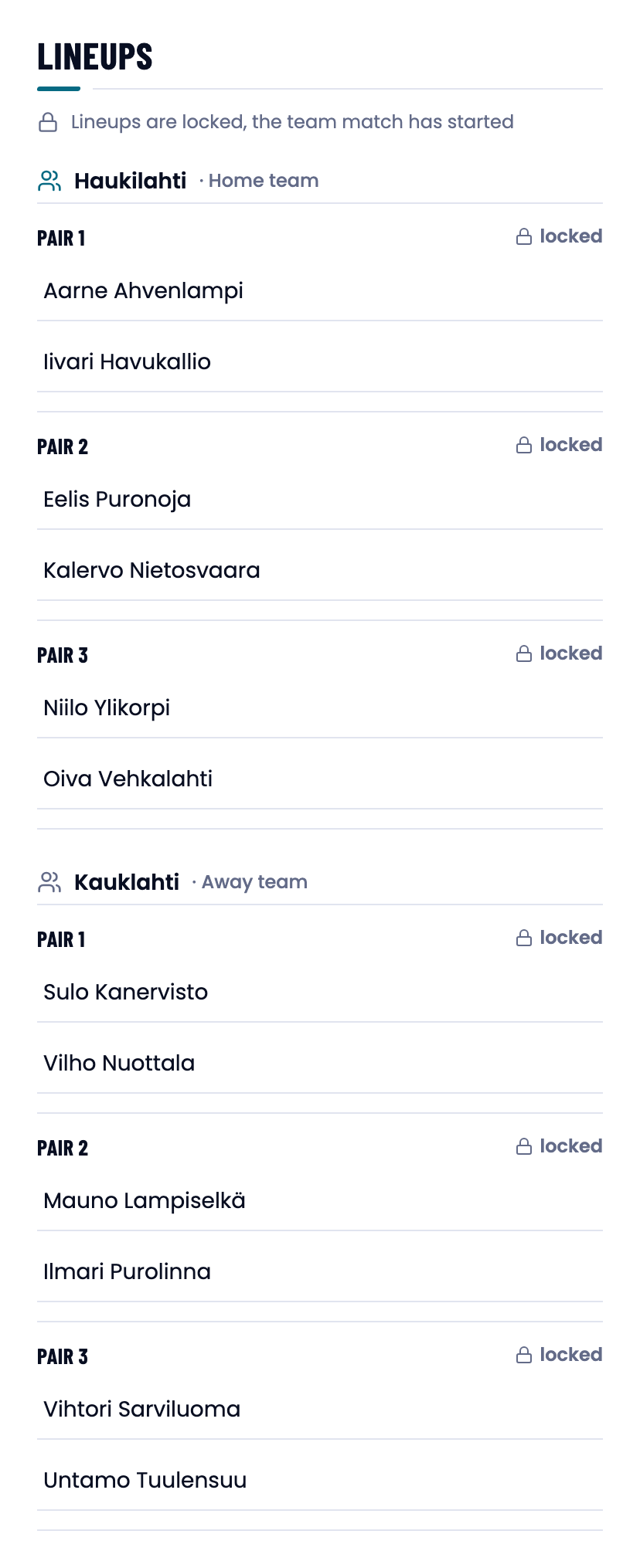
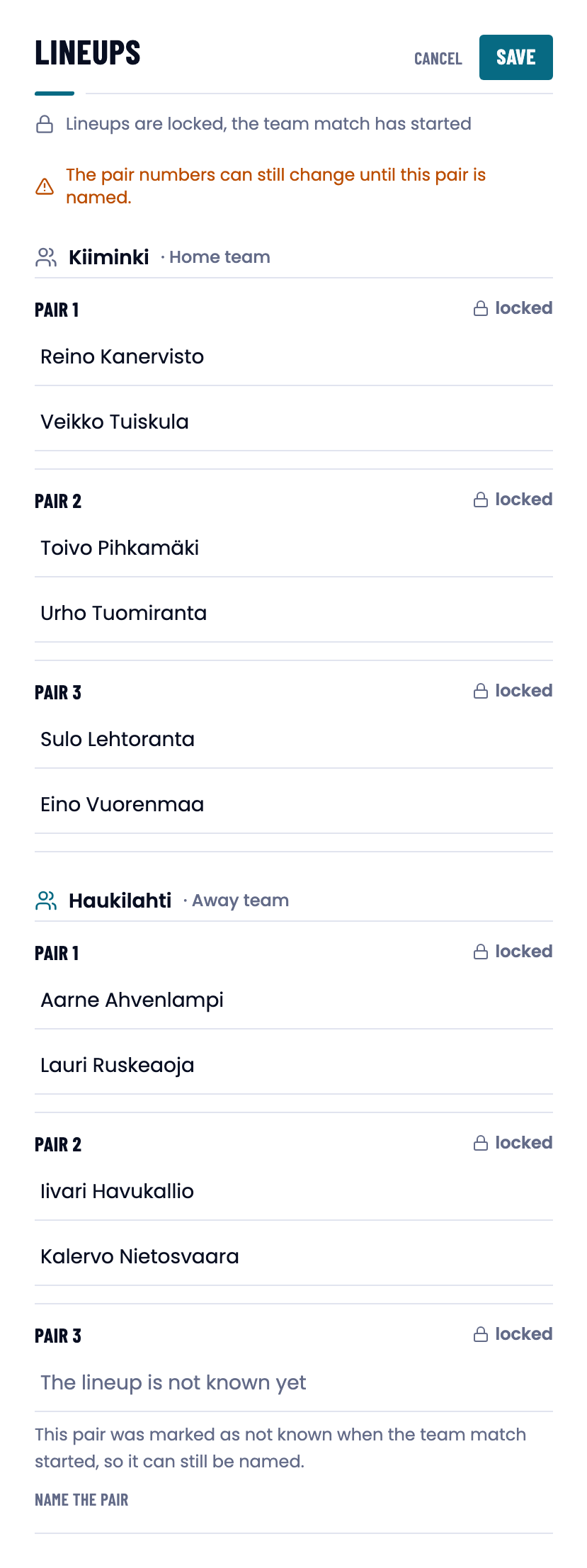
A pair you do not know yet
A pair can be marked as not known. That is a complete answer: the other pairs play as normal, as long as at least one pair is named in both teams. The pair numbers stay open.
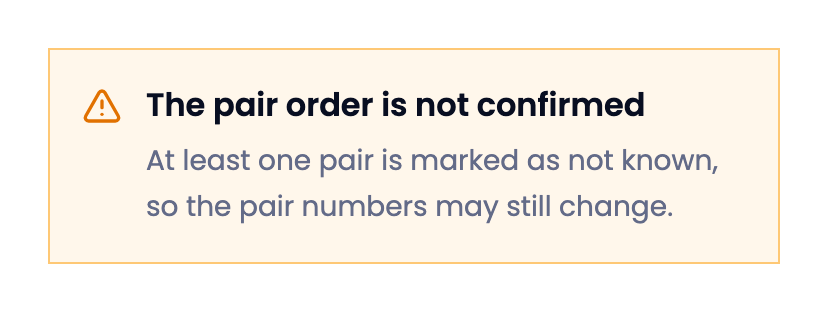
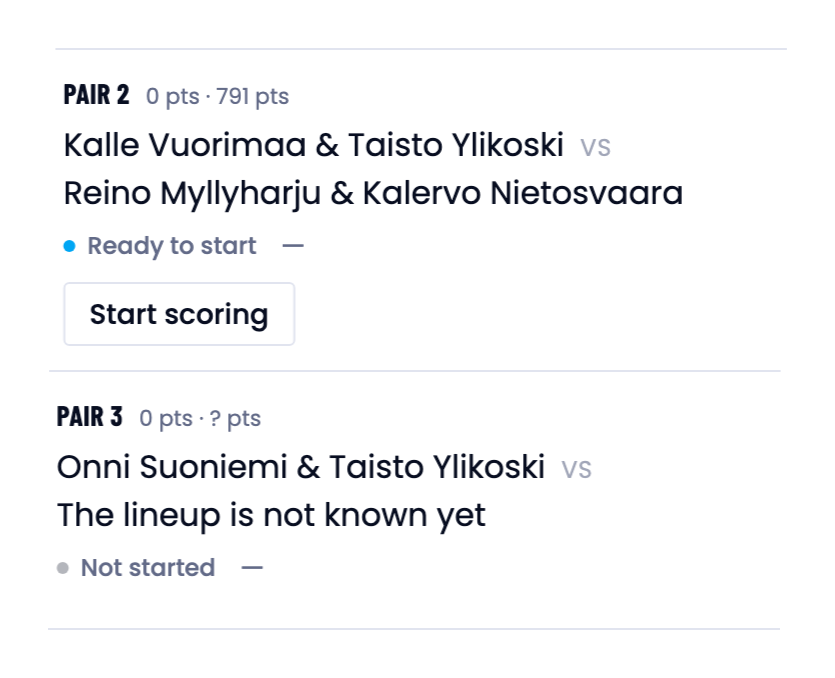
If nobody has named a seat, no pair can start. The page lists the missing seats on a line beginning “Waiting for lineups:” and offers a Mark as not known button for exactly those rows. An attempt to start answers: “Both teams must name all three pairs before the tie starts.”
Score each pair
- Find the pair that starts in the PAIRS section.
- Press Start scoring. The app creates the pair’s match and opens scoring.
- Record points with Add point. A wrong point comes off with Remove point.
- Go back to the team match and start the next pair. Continue scoring returns you to a running pair.
The guide video covers this from . See also Recording points.
When both captains record
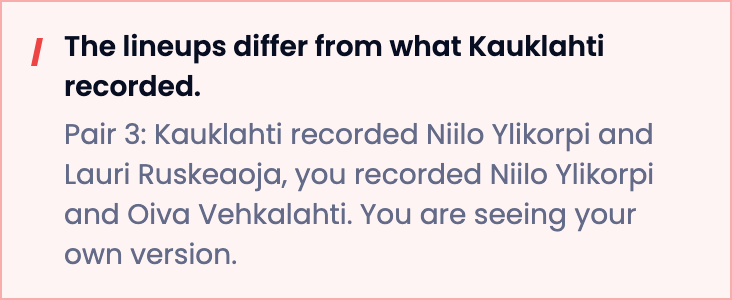
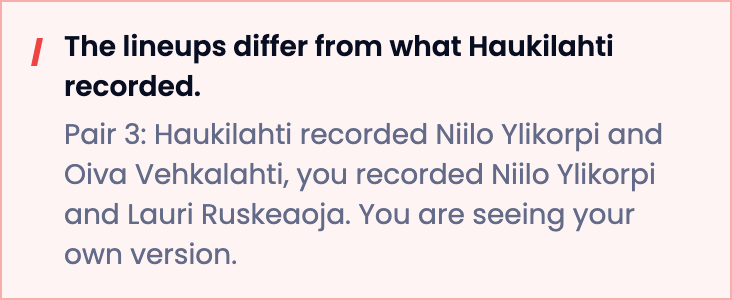
Either team can keep its own recording of the same team match. Once the opponent has recorded the same pair, the row reads for example “Kauklahti also recorded this”. If the teams recorded the pair with different players, a red notice appears at the top of the page. You always see your own team’s recording.
Finish the team match
The result is computed from the pairs. Once all three pairs’ matches are finished, the team match finishes on its own.
- Score all three pairs to the end.
- Check that the figure in the top bar matches what was played on court.
- If a pair was never played, close the match with Finish the team match. Pairs that were never played stay empty.
Good to know
Trouble?
“A pair needs both players, or it must be marked as not known.”
Half a pair is not accepted. Fill the other seat or press Mark as not known.
“A pair that is not known yet cannot name players.”
Press Name the pair first, then pick the players.
“Both teams must name all three pairs before the tie starts.”
Some seat is still unnamed. Fill it, or mark that pair as not known.
“Your team is already recording this pair.”
Press Continue scoring on the row.
A pair that was never played shows empty.
A finished team match counts only the pairs that were played.
Guide video transcript
The video was filmed before the current rule. At 1:26, 1:45 and 1:59 it describes the old pair-by-pair reveal and lock. Follow the rule on this page.
Show the full transcript
Duration 3:50. The video is in Finnish; this is a translation of the machine-made transcript.
- 0:00 I’ll go through, from the captain’s point of view, how we create a match, score games and analyse the results.
- 0:07 So first we sign in. In this case I created the account with an email address, so I type the email and the password and sign in.
- 0:17 Then we land on the home page, and from the home page you see everything.
- 0:22 You see the fixtures, you see past games and you can record new matches.
- 0:28 For matches you can record either a match of your own, a practice match or a team match.
- 0:35 In this case I have already created a team match that is under way right now: Haukilahti against Kauklahti.
- 0:45 Let’s open this team match so we can start scoring.
- 0:51 Right now the pairs are 0–0, but the first pair has already started playing and the score is 4–6, 1–2.
- 1:03 From here we can press “continue scoring” to get into scoring this game.
- 1:09 In this view we can add points. In this situation we can add a winner for Aarne and Iivari, and a winner for Sulo and Vilho.
- 1:20 The score is 15–30. Let’s go and score the next game of the team match.
- 1:26 Now we can press “start scoring” for the second pair, and in this case the opponent’s lineup for the second pair is revealed to us as well.
- 1:38 Let’s add a winner for Eelis and Kalervo.
- 1:45 As a captain I can also manage our lineups from this view: I can decide, for example, who plays in the third pair while that game has not started yet.
- 1:59 I cannot find out the opponent’s third pair from here before the game starts.
- 2:04 Right, then let’s go and see what the analysis of an already scored game looks like.
- 2:10 So we get to the games by clicking Matches, and from here we pick a match that has already finished.
- 2:18 From the overview tab we can look at, for example, players’ total impact scores and the highlights, where we see forced errors, winners and so on broken down.
- 2:32 And from here we can also look set by set at how these developed.
- 2:38 Then we see the totals by point type and the deciding points.
- 2:44 We can dig deeper from the filters view.
- 2:48 For example, we can pick the second pair and a player view as the filter.
- 2:53 Scrolling down from here we see that Niilo and Oiva have won the golden points 50–50.
- 3:01 And then, last, we look at the findings.
- 3:04 The findings are automatically generated text about the important things in this game.
- 3:11 What decided the match, how it could be improved, where the momentum shifts to the other side.
- 3:18 We also generate an AI analysis of what decided the game.
- 3:25 From this we see that the game was decided in practice by Eelis, because Eelis had a great many unforced errors [the app’s Unforced Errors].
- 3:35 And so his total impact went deep into the negative.
- 3:41 And that was the Padlo app for this time.
- 3:44 Happy scoring!